Welcome to Dopamine Girl
Dopamine Girl is an AI creation platform and creative community for making images, videos, characters, and stories. It brings several generation tools together in one website, so you can create, manage your assets, and explore work shared by other creators.
Start Creating
- Create or sign in to your account.
- Follow Your First Image to choose a model, write a prompt, and submit a generation.
- Open the finished result to download it or use Recreate to adjust it. See Find, Save, and Reuse Your Work.
Already have a picture? Magic Edit changes an existing image, while the video generator animates a still frame. The Basic Prompting Guide explains how to improve a prompt after your first attempt.
Choose a Tool
| You want to… | Start here |
|---|---|
| Make a new image from text | Your First Image |
| Change an existing image | Magic Edit |
| Animate an image | Video Generation |
| Make a song | MiniMax Music 3 or Yue2 |
| Use a custom style or character LoRA | Upload and Use a LoRA |
| Replace a face with permission | Face Swap |
Find the Right Help
- Tutorials start with step-by-step workflows, then cover model-specific prompting and settings.
- Payments explain how to add credits with crypto or Telegram Stars and answer common billing questions.
- Legal contains the safety policy, terms of service, and DMCA policy.
If a generation fails or the result looks wrong, use Troubleshooting Generations.
Create Responsibly
You are responsible for the prompts, uploads, and generated content associated with your account. Review the Safety Policy before creating or sharing content, and make sure you have permission to use any people, images, or other material included in your work.
For account or billing help, email tony@dopaminegirl.com.
Your First Image
This walkthrough makes one image from a text prompt. You need a signed-in account and enough available credit to generate. Check pricing before you start; the price depends on the model and settings.
1. Open the image generator
Go to Generate Image. The How to use control starts an in-page tour whenever you want to find a control. On a phone, the editor and Results are separate tabs.
2. Choose a model
Open Model and choose a Base Model and Checkpoint. A base model is the generation family; a checkpoint is a particular trained version in that family. Each family offers different references, LoRAs, and sampling controls. For your first image, keep the default settings after making your model choice.
For a general scene, try a model that accepts ordinary descriptive sentences, such as Flux1 Dev or SDXL. For anime art, see the Anima and Pony Diffusion guides.
3. Write one clear prompt
Open Prompt and describe the subject, action, setting, composition, light, and style. For example:
A red fox sitting beside a mountain stream, pine forest behind it, medium shot, soft morning light, detailed storybook illustration
Keep one main subject for the first attempt. You can add a Negative Prompt only if your selected model exposes that control. The Basic Prompting Guide has more examples.
4. Review settings and generate
In Settings, choose your image size and number of images. Private Mode keeps the result visible only to you; Hide Prompt hides prompt text when sharing a result. Check these before submitting if privacy matters. Leave Sampler at its defaults for now.
Select Generate. Creating images uses your available balance. New jobs and finished images appear in Results; on mobile, open the Results tab. Select a finished image to see the full result and its available actions.
5. Improve one thing at a time
- If the subject is wrong, put it at the beginning of the prompt and remove competing subjects.
- If the framing is wrong, add
close-up,full body, orwide shot. - If you want a comparable variation, turn on Use Fixed Seed and change one prompt detail. A seed helps comparison but does not guarantee identical output after you change other settings or models.
- If you want a new composition, change the seed.
Open the result and select Recreate to load supported settings back into the generator. Check them before generating again. See Find, Save, and Reuse Your Work for downloading, privacy, and history.
Next steps
Try Magic Edit to change an existing image, or Video Generation to animate one. Add a compatible LoRA only after you have a basic prompt that works.
Basic Prompting Guide
A prompt tells the image model what to generate. Dopamine Girl runs image workflows on ComfyUI, where the positive prompt describes what you want and the negative prompt describes what you want the model to avoid.
ComfyUI passes those prompts to the selected model. The model still determines which words, tags, and settings work best, so start with this general method and then use the guide for your model when you need more control:
- SDXL Prompting Guide for photos, products, cinematic scenes, and general illustration.
- Pony Diffusion Prompting Guide for anime, cartoon, furry, and tag-heavy character work.
- Anima Prompting Guide for anime and non-photorealistic illustration.
Start With a Clear Structure
Build the positive prompt in this order:
[subject] + [action or pose] + [environment] + [composition] + [lighting] + [style or medium]
Example:
A red fox sitting beside a mountain stream, pine forest in the background, medium shot, soft morning light, detailed storybook illustration
Put the main subject first. Add details that can be seen in the image, and remove words that do not change the intended result.
Build the Prompt One Layer at a Time
Start with the subject:
A red fox
Add an action and environment:
A red fox sitting beside a mountain stream, pine forest in the background
Add composition and lighting:
A red fox sitting beside a mountain stream, pine forest in the background, medium shot, soft morning light
Finish with a visual medium or style:
A red fox sitting beside a mountain stream, pine forest in the background, medium shot, soft morning light, detailed storybook illustration
This approach makes problems easier to diagnose. If the final image drifts away from your idea, remove the newest phrase or replace it with a more concrete description.
Describe Visible Details
Use specific visual language:
| Vague | More controllable |
|---|---|
beautiful woman | woman with a short black bob, green jacket, calm expression |
nice lighting | soft window light from the left, warm rim light |
cool background | rainy neon street with blurred signs and wet pavement |
professional photo | studio product photo, centered composition, softbox reflections |
Useful detail groups include:
- Subject traits: clothing, colors, materials, age range, hair, and expression.
- Action: standing, running, holding an object, or looking in a direction.
- Framing: close-up, portrait, full body, wide shot, overhead view, or centered composition.
- Lighting: golden hour, overcast daylight, softbox, hard side light, or neon rim light.
- Medium: photograph, watercolor, anime illustration, 3D render, or cinematic still.
Avoid stacking contradictory instructions such as photorealistic watercolor anime 3D render unless a mixed style is intentional.
Use Negative Prompts for Exclusions
The negative prompt should identify unwanted content or defects. Start short:
blurry, low quality, text, watermark, distorted anatomy, extra limbs
Add a term only when you see a recurring problem. A large generic negative prompt can suppress details you wanted and make results less distinctive.
Write the desired alternative in the positive prompt whenever possible. For example, if you do not want a busy background, add clean plain background to the positive prompt instead of relying only on cluttered background in the negative prompt.
Some newer model families use negative prompts differently or may ignore them. If changing the negative prompt has no effect, check the model-specific guide rather than adding more terms.
Emphasize Important Terms
In ComfyUI workflows that use CLIP prompt weighting, this syntax increases or decreases emphasis:
(golden hour:1.2)
(background details:0.8)
- Values above
1.0increase emphasis. - Values below
1.0decrease emphasis. 1.0is the normal weight.
Use small adjustments such as 1.1 or 1.2. Very high weights can create harsh colors, artifacts, or an image that ignores the rest of the prompt. Weighting behavior can differ when a workflow uses another text encoder, so treat it as an optional correction rather than the foundation of the prompt.
Generate Variations With Prompt Choices
Dopamine Girl supports dynamic prompt choices. Put alternatives inside braces and separate them with |:
{option one|option two|option three}
Before an image is generated, one alternative is selected from each brace group. This lets one prompt produce different combinations of subjects, outfits, environments, lighting, poses, or styles.
a {ginger|blonde|brunette|black-haired} beautiful girl, {wearing a flowing summer dress|wearing an elegant evening gown|wearing a cozy oversized sweater|wearing a futuristic cyberpunk outfit}, {standing in a flower garden|walking through a neon city street|sitting by a quiet lakeside|posing in a sunlit bedroom}, {soft natural lighting|cinematic golden hour lighting|dreamy pastel lighting|moody dramatic lighting}, highly detailed, beautiful face, expressive eyes, realistic, 8k
This example has four hair choices, four outfit choices, four scene choices, and four lighting choices, allowing up to 256 combinations.
Keep each group focused on one type of detail:
Portrait of a {smiling|serious|thoughtful} astronaut, {close-up|medium shot}, {inside a spacecraft|standing on a lunar surface}, {cinematic rim light|soft window light}
Use prompt choices when you want variety across generations. Use a normal fixed phrase when a detail must stay consistent. Start with a small number of alternatives so you can identify which combinations work well before expanding the prompt.
Iterate Without Losing a Good Result
Use a controlled loop:
- Generate with a simple positive prompt and a short negative prompt.
- Keep the same seed while changing one phrase.
- Compare the result and keep the change only if it helps.
- Change the seed after the prompt is working to explore new compositions.
The seed initializes the generation noise. Reusing it helps you compare prompt changes against a similar starting composition; changing it produces a new variation.
Do not change the prompt, seed, sampler, steps, and guidance at the same time. You will not know which change improved or damaged the image.
Understand the Main Generation Controls
Prompt quality matters, but sampling controls also affect the result:
| Control | What it changes | Practical use |
|---|---|---|
| Seed | Initial random noise | Lock it while testing a prompt; change it for variations. |
| Steps | Number of denoising iterations | More steps take longer and do not always improve a finished image. |
| CFG or guidance | Strength of prompt adherence | Increase carefully; excessive guidance can reduce image quality. |
| Sampler and scheduler | How noise is removed | Start with the workflow default or use the sampler and scheduler guide. |
| Denoise | How strongly an input image is changed | 1.0 is full denoising; lower values preserve more of an input image in image-to-image workflows. |
Model defaults matter. A CFG value that works for one checkpoint may be wrong for another, so do not apply one universal setting to every workflow.
Starter Prompts
Portrait
Portrait of a woman with a short black bob wearing a dark green jacket, looking at the camera, rainy city street at night, 85mm lens, shallow depth of field, soft neon rim light, cinematic photography
Product Image
White ceramic perfume bottle on black stone, centered close-up product photo, clean background, softbox reflections, cool blue edge light, luxury advertising style
Fantasy Illustration
A small airship approaching a city built into red cliffs, wide establishing shot, clouds below the city, late afternoon sunlight, detailed fantasy concept art
Anime Character
1girl, solo, short silver hair, blue eyes, red winter coat, standing at a quiet train platform, falling snow, looking at viewer, soft evening light, detailed anime illustration
For anime checkpoints trained on tags, use the exact quality, source, and safety tags recommended in the relevant model guide.
Fix Common Problems
The model ignores the main subject
- Move the subject to the beginning.
- Remove secondary characters and unnecessary objects.
- Replace vague adjectives with visible traits.
- Reduce competing styles and weighted terms.
The composition is wrong
- Add one framing instruction such as
close-up,full body, orwide shot. - State where the subject is placed:
centered,on the left, orin the foreground. - Keep the seed fixed while testing composition changes.
The image looks overprocessed
- Remove repeated quality terms.
- Lower strong prompt weights.
- Reduce CFG or guidance if the selected model supports that control.
- Use a clear lighting setup instead of stacking
masterpiece,8k, andultra detailed.
Important details keep changing
- Put identity details near the subject.
- Use consistent wording for colors, clothing, and accessories.
- Simplify the scene before adding more prompt terms.
- Use a suitable LoRA or reference-image workflow when text alone is not enough.
Final Checklist
- Name the main subject first.
- Describe action, environment, composition, lighting, and style with visible terms.
- Keep the negative prompt focused on problems you actually see.
- Use prompt weights sparingly and only when the workflow supports them.
- Use
{choice one|choice two}groups when you want automatic prompt variations. - Keep the seed fixed and change one variable at a time.
- Follow the selected model's prompting guide for model-specific syntax.
References
Edit an Image with Magic Edit
Magic Edit changes an existing image from written instructions. Use it for requests such as changing the background, adding an object, or trying a new look while keeping a subject. If you only need a new image from text, start with Your First Image.
Follow the editing flow
- Open Magic Edit and choose a Base Model and Checkpoint in Model. The available models are Qwen Image, Qwen Image 2.1, and Flux2 Klein.
- In Input Images, upload or select the image you want to edit. You can crop it before submitting. The first image determines the output ratio and affects the price, so check its crop and order.
- Write an Edit Prompt that says what to change and what to keep.
- Review Settings, especially Private Mode and Hide Prompt, then select Edit Image.
- Follow the job in Results. On mobile, open the Results tab. Open the finished image to download it or use Recreate for another attempt.
Start with one image and a specific request:
Change the overcast sky to a warm sunset. Keep the red fox, its pose, the stream, and the camera angle unchanged. Match the new light on the water and fur.
If too much changes, shorten the request and name the details that must stay. If the edit is too subtle, describe the intended new appearance more concretely. Use Use Fixed Seed when comparing two versions of the prompt.
Edit with multiple images
The supported number of inputs depends on the model: Qwen Image accepts up to three selections, Qwen Image 2.1 up to five, and Flux2 Klein up to three. Drag the images to set their order. Their order matters to the prompt.
- Qwen Image: the selected references are combined left to right into one guide image. Refer to their visible positions, such as “the person on the left” and “the jacket on the right.”
- Qwen Image 2.1: refer to distinct inputs with
<image1>through<image5>as shown by the editor. - Flux2 Klein: describe the role of each reference in order, such as “use Reference 1 for the subject and Reference 2 for the clothing.”
Example with two references:
Keep the subject and pose from Reference 1. Use the blue jacket from Reference 2, matching its fabric and collar. Keep the original background and lighting.
The available model can change how closely details are preserved. Review the output instead of assuming that an instruction will be followed exactly.
Add a LoRA only when needed
Use Add LoRA to select a LoRA compatible with the chosen model. LoRAs can influence a style or concept; their weights can be adjusted or an entry disabled. If an edit becomes distorted or ignores the original image, retry without the LoRA or lower its weight. The editor supports up to five selected LoRAs.
For a head swap using the BFS LoRA, follow the separate Face Swap Guide. For normal face replacement, the Face Swap tool is a simpler starting point.
What affects cost?
The first reference sets the output width and height by default. Qwen Image 2.1 rounds each side to the nearest 32 pixels. Enable Scale to 2K in Settings to target a size close to the model's 2K image-generation sizes while keeping the first image's ratio. If you cropped it, the cropped ratio is used. The first image is scaled for the edit without padding or trimming; other references are not scaled to 2K. Images with extreme aspect ratios may have fewer pixels than the usual 2K output because the longer side is capped. An image already at a supported 2K size stays at that size. The output size may increase or decrease, so the credit cost may change. Flux2 Klein and Qwen Image 2.1 can also add a charge for each reference. See the current pricing page before submitting.
Find, Save, and Reuse Your Work
After submitting a job, follow it in the tool's Results panel. On mobile, switch to the Results tab. To find work later, open History.
Open and download a result
Select a completed item to open its detail view. The detail view shows the image or video and the actions available for that type of result. Use Download to save a copy. Save important work to your own device; a browser tab or an open editor is not a backup.
Continue from an earlier result
- Recreate loads supported generation settings into the relevant tool so you can make a variation. Review the model, prompt, inputs, LoRAs, and price before submitting again. A LoRA or reference that is no longer accessible may need to be selected again.
- Magic Edit opens an image in the editing tool when that action is available.
- Animate opens a suitable image as a starting point for video when available.
- As Reference adds an image as a reference for a new generation when available.
Changing the model or seed can give a very different result even when you reuse the prompt. If you are comparing variations, keep the other settings steady.
Control sharing
During creation, Private Mode keeps a generation visible only to your account. Hide Prompt controls whether your prompt text appears when sharing; it does not make the artwork private. You can also open your own result and use Make Private or Make Public, and Hide Prompt or Show Prompt, when those actions are available.
Check both settings before sharing a link. Only upload source material you are allowed to use, and review the Safety Policy.
Keep related work together
Use Collections to organize related results. If a result is missing from your current view, check History and its search filters before trying to recreate it from scratch.
Video Generation Guide
Use Generate Video to animate a still image. Choose a model first: available lengths, frame inputs, audio, and LoRAs depend on that model. The pricing page lists the current per-second rates.
Make a first clip
- Choose a video model. For a first attempt, keep its default settings.
- Add a clear First Frame image. Start with one subject and enough room in the frame for the motion you want.
- Choose the clip duration and write one motion instruction. Describe what moves, how fast it moves, and whether the camera moves.
- Review the available settings and price, then generate. Follow the job in Results; on mobile, open the Results tab.
Copy-ready example:
A red fox lifts its head and looks toward the stream. Its ears turn slightly as a breeze moves the grass. The camera stays still in a medium shot. Soft morning light remains consistent.
The first frame already supplies much of the subject, composition, and style. Spend the prompt on changes over time. A short clip usually works best with one main action rather than several scene changes.
Write motion and camera instructions
Use this simple structure:
[subject action] + [background motion] + [camera movement or static camera] + [end state]
For example, the cyclist rides past the camera; her coat moves in the wind; the camera pans slowly right; she exits the frame gives a clear sequence. Avoid conflicting directions such as “locked camera” and “fast orbit” in the same shot.
If a clip looks unstable, reduce the amount of action and camera travel. If it looks static, use a more visible action: turns toward the window is easier to judge than feels hopeful.
Choose the right model guide
- Wan 2.2: begin with a first frame and a concise motion prompt. Try another seed or simpler action if the result drifts. The video tool offers different output resolutions; check their prices before submitting.
- MiniMax H3: supports first-frame and optional last-frame image-to-video with synchronized audio. Use the MiniMax H3 Prompting Guide for its structured sound and shot instructions.
- LTX 2.3: add a required first frame and, optionally, a last frame to guide the ending. This works with LTX 2.3 Base and DragonLeap; select either checkpoint and its available settings in the video tool.
Model-specific controls are shown in the generator. A setting available for one model may be absent for another.
Use an existing image
Open a finished image and select Animate when available. This loads it into the video workflow. Review the model, frame, prompt, length, and price before submitting; the image does not dictate the motion on its own.
If you own the input image, you can also return to the image generator or Magic Edit to prepare a clearer first frame before animating it.
MiniMax H3 Prompting Guide
MiniMax H3 generates video and synchronized stereo audio together. In Dopamine Girl, H3 currently works as image-to-video: upload a first frame, optionally add a last frame, choose a 3–5 second duration, and describe everything that should happen between those anchors.
This guide adapts the official MiniMax H3 model card, prompt-writing skill, and base prompt guide to the controls available in Dopamine Girl.
Add LoRAs
Use Add LoRA in the H3 video tool to select up to five MiniMax H3 I2V LoRAs from your library, favorites, or the community. Import compatible LoRAs through the existing Upload LoRA page by choosing that model family. WAN and LTX LoRAs are not compatible with H3.
Adjust each LoRA's weight with the existing controls, and disable any entry you do not want applied. Selected LoRAs and weights survive reloads and appear in the generated video's details. Recreate restores entries you still have permission to use. Switching between H3 and another video model clears the selection.
Use H3's Three-Part Prompt
H3 prompts work best when they keep these fields in this exact order:
integrated_multimodal_description:
[Describe the visible action, camera, timing, dialogue, and matching sound effects.]

overall_soundscape:
[Describe the continuous environmental sound and spatial audio.]

non_diegetic_music:
[Describe background score that does not come from the scene, or write N/A.]
The first field is the main timeline. It should connect motion, camera direction, and diegetic sound—the sound produced inside the scene—rather than treating picture and audio as unrelated lists.
The other two fields have narrower jobs:
overall_soundscapedescribes the continuous ambient bed, such as rain, traffic, room tone, wind, or crowd noise. One to four sentences is normally enough.non_diegetic_musicdescribes a background score heard by the audience but not produced inside the scene. Keep it to one to three sentences, or useN/Awhen you do not want music.
First Frame Only
With only a first frame, treat the uploaded image as the composition at 0.00 seconds. Start your prompt with this alignment instruction:
For the target video, at 0.00 seconds into the target video, <Picture 1> (from [Shot 1]) is fully referenced.
Then describe motion that grows naturally out of that frame. The image already establishes the subject, clothing, environment, color palette, and initial camera angle, so spend most of the prompt on what changes:
- the subject's action and expression;
- movement in hair, fabric, particles, weather, or background objects;
- camera direction, speed, and travel distance;
- sound effects timed to visible events;
- the state in which the shot should finish.
Example: first frame only
For the target video, at 0.00 seconds into the target video, <Picture 1> (from [Shot 1]) is fully referenced.

integrated_multimodal_description:
[Shot 1] The woman looks up from the letter and takes one measured step toward the rain-streaked window. The camera performs a very slow, short dolly-in while keeping her face centered. Her sleeve brushes the wooden desk with a soft rustle; distant thunder follows as blue light briefly brightens the room. She ends still, watching the rain beyond the glass.

overall_soundscape:
Steady rain taps against the window in a quiet interior, with low distant city traffic and a faint room echo.

non_diegetic_music:
Sparse, restrained piano notes enter softly and remain beneath the rain.
First and Last Frame
After uploading a first frame, Dopamine Girl lets you add a last frame. Use both images as endpoints and explain the continuous path between them. For a five-second clip, begin with:
How the reference pictures align with the target video — Picture 1 (from Shot 1) aligns with the 0.00-second mark of the target video; Picture 2 (from Shot 1) aligns with the 5.00-second mark of the target video.
Replace 5.00 with the duration you selected. Keep both references in the same shot unless a cut is genuinely necessary. Describe the intermediate movement explicitly: what initiates the change, how the subject and camera travel, and how they settle into the last frame. This helps avoid a clip that holds the first image and then abruptly jumps to the second.
Example: first and last frame
How the reference pictures align with the target video — Picture 1 (from Shot 1) aligns with the 0.00-second mark of the target video; Picture 2 (from Shot 1) aligns with the 5.00-second mark of the target video.

integrated_multimodal_description:
[Shot 1] Starting from Picture 1, the skateboarder pushes off and glides down the wet alley. The camera tracks backward at the same moderate speed, then arcs gently to the right as she turns. Reflections stretch beneath the board; each wheel clicks lightly over pavement seams. During the final second she slows, rotates her shoulders, and settles precisely into the stance and framing of Picture 2.

overall_soundscape:
Close rolling wheels and light splashes sit over a broad nighttime bed of rain, ventilation fans, and distant traffic.

non_diegetic_music:
A minimal electronic pulse rises subtly through the shot without overpowering the wheel sounds.
Direct Motion as a Short Timeline
A 3–5 second clip has little room for setup. One coherent shot with one main action is usually stronger than several scene changes.
Use [Shot 1] without a timestamp. If you intentionally add a cut, give each later shot an increasing timestamp:
[Shot 1] A cyclist accelerates toward the intersection...
[Shot 2] [2.80s] Cut to a close side profile as she passes the camera...
Keep every described event inside the selected duration. If a five-second prompt asks a character to wake up, cross a room, leave a building, drive away, and reach another city, the model has no clear motion to prioritize.
Specify camera movement precisely
Combine three details:
- Type — pan, tilt, dolly, orbit, handheld track, crane, or locked-off shot.
- Amplitude — slight, short, half-circle, close follow, or wide sweep.
- Speed — very slow, steady, brisk, or rapidly accelerating.
For example, a slow, short dolly-in from a medium shot to a close-up is more actionable than cinematic camera movement.
Direct Dialogue, Sound, and Music
H3 can generate speech and scene audio together with the picture. Assign stable speaker IDs when more than one person speaks, and place dialogue at the point where it occurs:
The shopkeeper (S1) leans closer and whispers <d>[English] The door was already open.</d>
The customer (S2) turns toward the entrance without answering.
Preserve the exact wording and language you want spoken. Do not repeat dialogue in overall_soundscape; use that field for ambience. Put visible signs, captions, or title text in double quotes so they are clearly distinguished from speech.
Keep sound sources spatially consistent. A nearby object should sound close and distinct, while traffic outside a closed room should be muffled and distant. Time one-off sounds alongside the action that causes them: a cup lands and clicks, a door closes and thuds, or thunder follows a flash.
Copy-Ready Templates
First frame template
For the target video, at 0.00 seconds into the target video, <Picture 1> (from [Shot 1]) is fully referenced.

integrated_multimodal_description:
[Shot 1] Starting from Picture 1, [subject] [main action]. The camera [type, amplitude, and speed]. [Environment or secondary motion]. [Sound timed to a visible event]. The shot ends with [clear final state].

overall_soundscape:
[Continuous ambience, spatial position, and intensity.]

non_diegetic_music:
[Background score and mood, or N/A.]
First and last frame template
How the reference pictures align with the target video — Picture 1 (from Shot 1) aligns with the 0.00-second mark of the target video; Picture 2 (from Shot 1) aligns with the [DURATION]-second mark of the target video.

integrated_multimodal_description:
[Shot 1] Starting from Picture 1, [subject and camera begin moving]. [Describe the continuous intermediate action and synchronized sounds]. During the final second, [describe how motion slows or resolves] and settles precisely into Picture 2.

overall_soundscape:
[Continuous ambience, spatial position, and intensity.]

non_diegetic_music:
[Background score and mood, or N/A.]
Final Checklist
- Keep the three field names in the required order.
- Match all timing to the selected 3–5 second duration.
- Describe motion away from the first frame, not just what the image contains.
- With a last frame, explain the physical transition and final settling motion.
- Prefer one main action and one shot for a short clip.
- Define camera type, amplitude, and speed instead of relying on abstract words such as “cinematic.”
- Put synchronized effects beside the action that creates them.
- Keep ambience out of the music field and music out of the soundscape field.
- Use stable speaker labels and preserve dialogue exactly.
- Use concrete visible and audible details instead of broad mood words alone.
MiniMax Music 3 Prompting Guide
MiniMax Music 3 generates complete songs from two separate text inputs: Style to describe the music and Lyrics that define the words and song sections. It is designed to maintain themes, rhythm, vocal identity, and an evolving arrangement across a long track.
The model itself can generate songs up to five minutes, while Dopamine Girl currently offers maximum-duration choices of 1, 2, or 3 minutes and returns the finished song as an MP3. The selected duration is an upper bound: the model can end naturally before it when the song structure or lyrics are complete.
Keep Style and Lyrics Separate
The two fields have different jobs:
| Field | Put this here | Do not put this here |
|---|---|---|
| Style | Genre, tempo, mood, vocals, instruments, arrangement changes, and production style | The words that should be sung |
| Lyrics | Section tags and the exact words to sing | A general list of genres, instruments, or mix instructions |
Duplicating lyrics inside Style wastes space and can make the musical direction less clear. Describe how the song should sound in Style and what the singer should sing in Lyrics.
Structure Lyrics With Section Tags
Section tags guide the song's large-scale structure. Useful tags include:
[Intro]
[Verse]
[Pre-Chorus]
[Chorus]
[Post-Chorus]
[Bridge]
[Instrumental]
[Solo]
[Outro]
Put every tag on its own line. Do not write lyrics on the same line as a tag—the words after a leading tag can be dropped by the model's input format.
Use this:
[Verse]
Streetlights dissolve into the rain
Your voice is calling through the train

[Chorus]
We keep running into midnight
Holding sparks against the skyline
Not this:
[Verse] Streetlights dissolve into the rain
Tags guide rather than guarantee the final arrangement. Give each selected duration enough material: a few short lines may produce a short song even when the maximum duration is three minutes.
Write a Structured Style
A concise natural-language Style description works for quick experiments. For stronger control, organize it into three sections in this order:
- Global Metadata
- Vocal Details
- Arrangement
The official prompting guide recommends roughly 250–450 words for a detailed structured Style description. Treat that as a useful target, not a requirement. Specific, consistent instructions matter more than length.
1. Global Metadata
Describe the identity and emotional path of the whole song:
- genre and subgenre;
- tempo or energy level;
- key and scale only when they genuinely matter;
- emotional progression from opening to climax and resolution;
- a scene or listening context that anchors the mood;
- production character, such as intimate and natural or wide and polished.
Avoid using only broad modifiers such as epic, dark, or emotional. Pair them with an actual genre, instruments,
and an energy arc.
2. Vocal Details
State the vocal identity explicitly:
- singer gender and vocal range or timbre;
- delivery in each section, such as restrained verses and a belted chorus;
- backing vocals, harmonies, doubles, or call-and-response;
- restrained vocal effects such as plate reverb or delay throws.
If the song should be instrumental, say so explicitly and name the instrument that carries the lead melody.
3. Arrangement
Write the arrangement as a timeline, not an equipment list:
- identify the primary instrument or motif that anchors the song;
- explain when secondary instruments enter, leave, or change;
- describe how drums, bass, and groove grow or strip back by section;
- reserve risers, sweeps, fills, reverbs, and other embellishments for specific transitions.
For example, instead of synth, bass, drums, guitar, write: A pulsing analog synth opens alone; bass and a restrained electronic kick enter in the verse; wide guitars and stacked drums lift the chorus; the bridge strips back to voice and pad before the full arrangement returns.
Copy-Ready Style Template
Global Metadata
Genre and subgenre: [genre]. Tempo: [exact BPM, range, or qualitative pace].
The song begins [opening emotion], builds toward [climax], and resolves [ending emotion].
It suits [scene or listening context]. The production is [mix width, tone, dynamics, and overall finish].

Vocal Details
[Singer identity, gender, range, and timbre]. The verses are delivered [style], while the chorus becomes [style].
[Backing vocal or harmony plan]. Use [specific vocal effects] only in [sections or transitions].

Arrangement
[Primary instrument or motif] anchors the song. [Secondary instruments] enter during [section].
The groove begins [foundation], grows [section-by-section development], strips back during [section],
and returns [final development]. Use [specific textures or effects] at [specific transitions].
Complete Example
Style
Global Metadata
Dreamy synth-pop with a subtle new-wave influence at a steady mid-tempo pace. The song opens with quiet anticipation,
gains confidence through the verses, and releases into a bright, expansive chorus. The bridge becomes briefly lonely
before the final chorus resolves with warmth and momentum. It should feel like driving through a rain-lit city after
midnight. Use a polished but breathable mix with warm low frequencies, crisp percussion, and a wide chorus.

Vocal Details
A clear female mezzo-soprano with an intimate, slightly breathy tone. Keep the verses close-miked and restrained, then
open into a confident sustained delivery in each chorus. Add soft doubled vocals in the pre-chorus and wide stacked
harmonies on the last two lines of the chorus. Use short plate reverb throughout and one subtle delay throw at the end
of each chorus.

Arrangement
A pulsing analog synth arpeggio establishes the central motif in the intro and continues quietly beneath the verses.
A rounded synth bass and tight electronic kick enter with the first verse. Muted guitar accents and rising pads build
the pre-chorus. The chorus adds wider drums, brighter synth chords, and layered backing vocals. Strip the bridge down
to the lead vocal, bass pulse, and distant pad, then rebuild with a snare fill into a final chorus featuring an added
counter-melody. End by removing the drums and letting the original arpeggio fade into rain-like ambience.
Lyrics
[Intro]

[Verse]
Streetlights shimmer on the glass
Every color moves too fast
I hear your echo down the line
Calling me through borrowed time

[Pre-Chorus]
The city falls away below
There is only where we go

[Chorus]
We keep running into midnight
Holding sparks against the skyline
If the morning finds us changing
We will leave the dark behind

[Verse]
Silver signals cross the rain
Drawing maps across the train
Every turn becomes a door
Leading somewhere worth the fall

[Bridge]
When the noise is gone
Will the rhythm carry on?

[Chorus]
We keep running into midnight
Holding sparks against the skyline
If the morning finds us changing
We will leave the dark behind

[Outro]
Leave the dark behind
Instrumental Tracks
Dopamine Girl currently requires the Lyrics field even when you want an instrumental. Use a non-empty tag-only structure and make the instrumental direction explicit in Style:
[Intro]
[Instrumental]
[Solo]
[Outro]
In Vocal Details, write something like: Instrumental track with no singer. A lyrical tenor saxophone carries the lead melody. Then describe how that lead instrument changes through the sections.
Duration and Seed
- Max duration: Choose 1, 2, or 3 minutes. Dopamine Girl reserves up to $0.20 per selected minute, then charges $0.20 per minute of finished audio, prorated by measured seconds. The song may end before the selected maximum.
- Lyrics length: Longer tracks need enough sections and lyrics to sustain them. Add another verse, chorus, bridge, or instrumental passage when a song ends too early.
- Fixed seed: Reuse a seed while revising one part of a prompt so comparisons are easier. A fixed seed improves repeatability but does not guarantee identical audio after other inputs change.
Fix Common Prompting Problems
Lyrics disappear after a tag
Move the tag onto its own line. [Verse] First lyric line can lose the lyric text; place the lyric on the next line.
The song becomes instrumental unexpectedly
State the singer's gender, timbre, and delivery explicitly in Vocal Details, and provide enough singable lyrics for the selected duration.
The result ignores part of the style
Remove contradictions. Preserve required genre, tempo, vocal, instrument, and exclusion instructions across the whole Style. When instructions conflict, explicit requirements should remain the clearest statements.
The arrangement feels static
Describe entrances, exits, density changes, and the energy of each section. Tell the model what changes in the chorus and bridge instead of listing instruments once.
The song is shorter than requested
The duration is an upper bound. Expand the Lyrics with complete sections and describe a longer arrangement arc rather than repeating vague mood words.
The music sounds forced or overly literal
Remove exact BPM, key, or production details that are not essential. Precise values are useful when intentional, but invented precision can reduce the model's freedom to make a musical result.
Pre-Generation Checklist
- Style and Lyrics contain different information.
- Every lyric section tag is on its own line.
- Lyrics contain enough sections for the selected duration.
- Global Metadata, Vocal Details, and Arrangement do not contradict one another.
- Vocal identity is explicit, or the track is explicitly instrumental with a named lead instrument.
- The arrangement describes a timeline of entrances, exits, and intensity changes.
- BPM and key are included only when they are important.
- Required instruments and exclusions remain consistent from beginning to end.
Yue2 Prompting Guide
Yue2 creates a song from a description of its sound and a separate set of lyrics. In Dopamine Girl, use Style to describe the sound and Lyrics for the song's sections and words to sing.
Open the Music tool, where Yue2 and a five-minute maximum are selected by default. Fill in both fields, and choose a maximum duration of 1–6 minutes if you want a different limit. The result can end earlier.
Write the Style as a Sound Description
Start with the details you care about most. A useful Style description names the genre, mood, main instruments, pace, and vocal character. Add the language when it matters, and keep it consistent with the language of the lyrics.
For example:
Japanese city pop with a relaxed 100 BPM groove, bright electric piano, melodic bass, clean rhythm guitar, and soft
drums. Warm female lead vocal with clear diction. The verses feel intimate; the chorus opens into a wider, hopeful sound.
Use Style for musical direction. Put the words you want sung in Lyrics, not in Style. A few clear, compatible details usually work better than a long list of conflicting genres or moods.
Give Lyrics a Clear Structure
Put each section label on its own line. Leave a blank line between sections, and keep the words under each label short
enough to sing naturally. Common labels include [Verse], [Pre-Chorus], [Chorus], [Bridge], [Interlude], and
[Outro].
[Verse]
Paper lanterns light the rain
Every street remembers your name

[Chorus]
Meet me where the city glows
We can follow where the night goes

[Verse]
Quiet footsteps mark the time
Your distant voice is close to mine

[Chorus]
Meet me where the city glows
We can follow where the night goes

[Outro]
Where the night goes
Write a repeated chorus out again rather than using “repeat chorus” shorthand. Keep production notes such as “add
drums” in Style; use an empty section label such as [Interlude] to suggest a wordless passage. If the song feels
rushed, shorten long lyric lines and keep the syllable pattern of repeated lines similar.
For a wordless track, Dopamine Girl still requires text in the Lyrics field. Describe the instrumental lead in Style and use a section-only structure such as:
[Verse]

[Chorus]

[Bridge]

[Chorus]

[Outro]
Optional ABC Notation
Generate ABC notation is optional and starts off. Turn it on if you want Yue2 to make a melody-and-chord plan before generating the audio. Leave it off to generate directly from Style and Lyrics. Dopamine Girl uses the full planning mode when the toggle is on; it does not offer a melody-only mode or a score editor in this tool.
Duration, Price, and Seed
The selected duration is a maximum, not a promise that the song will fill it. Dopamine Girl reserves up to $0.01 per selected minute when you submit. After the MP3 is finished, it charges $0.01 per minute of finished audio, prorated by measured seconds, and releases the unused reservation. A six-minute maximum therefore reserves up to $0.06, while a shorter finished song costs less.
You can enable Use fixed seed to reuse a seed while changing a prompt. This helps compare attempts, but changing the prompt or generation settings can still change the song.
If the Result Misses Your Intent
- The vocal sounds unlike the request: Make the singer's tone, language, and delivery explicit in Style.
- Lyrics are rushed or unclear: Use shorter lines and fewer words per section.
- The chorus does not return: Repeat its full text under a second
[Chorus]label. - The arrangement feels flat: Describe what changes between the verse, chorus, and bridge in Style.
- The song ends early: Add another complete section; raising the maximum alone does not add musical material.
For more prompting detail, see the YuE2 style and lyrics guide and the YuE2 project guide.
Anima Prompting Guide
Anima is a text-to-image model built for anime, illustration, and non-photorealistic art. It can make polished character art, stylized scenes, and painterly images, but it is not designed for realistic photos.
Use this guide when you want cleaner anime prompts, stronger character control, and fewer accidental style or safety misses.
Best Starting Point
Start with this positive prompt prefix:
masterpiece, best quality, score_7, safe,
Use this negative prompt:
worst quality, low quality, score_1, score_2, score_3, artist name
Then add your subject, character, style, and scene details after the prefix.
Tag Prompt Formula
For tag-based prompts, use this order:
[quality/meta/year/safety tags], [1girl/1boy/1other], [character], [series], [artist], [general tags]
Example:
masterpiece, best quality, score_7, safe, 1girl, original character, newest, highres, long black hair, blue eyes, school uniform, cherry blossoms, soft smile, looking at viewer, sunset, warm lighting, detailed background
The sections do not need to be perfect, but keeping the big pieces in this order helps Anima understand what matters most.
Useful Tag Groups
Quality tags
masterpiecebest qualitygood qualitynormal qualitylow qualityworst quality
Score tags
score_9score_8score_7score_6score_5
You can use quality tags, score tags, both, or neither. A reliable default is masterpiece, best quality, score_7.
Time period tags
newestrecentmidearlyoldyear 2025year 2024
Use these when you want the image to feel closer to a specific era of anime art.
Meta tags
highresabsurdresanime screenshotofficial artjpeg artifacts
Safety tags
safesensitivensfwexplicit
Use safe in the positive prompt when you want non-explicit output. Add unwanted safety classes to the negative prompt if the image keeps drifting.
Tag Hygiene
- Use lowercase for tags.
- Use spaces instead of underscores, except score tags like
score_7. - When a tag name differs between Danbooru and Gelbooru, use the Gelbooru-style tag.
- Do not list every possible detail. Anima was trained with tag dropout, so a focused set of important tags is usually better than a cluttered prompt.
Artist Tags
Prefix artist names with @.
@artist name
The @ matters. Without it, the artist reference may be much weaker.
Example:
masterpiece, best quality, score_7, safe, 1girl, original character, @artist name, silver hair, red scarf, winter street, snow, cinematic lighting
Only use artist references when you have the right to do so and the result is appropriate for your project.
Natural Language Prompts
Anima also understands normal descriptive prompts. Use at least two sentences when writing pure natural language; very short prompts can produce unpredictable results.
Example:
masterpiece, best quality, score_7, safe. Digital anime illustration of an original young mage with short auburn hair and green eyes, wearing a navy cloak with silver embroidery. She stands in a moonlit library, holding a glowing spellbook while dust motes float through the air. Warm candlelight, detailed background, gentle expression, crisp line art.
For named characters, describe their appearance after the name. This is especially important when prompting multiple characters.
Digital anime illustration of Character A, a tall girl with long purple hair and violet eyes, standing beside Character B, a short boy with messy brown hair and round glasses. They are arguing in a crowded train station at night, neon signs reflected on the wet floor.
Mixing Tags And Sentences
You can combine tag blocks and prose in the same prompt. A good structure is:
[quality tags], [safety tag], [character count], [core visual tags]. [One or two natural language sentences with the scene, action, lighting, and mood.]
Example:
masterpiece, best quality, score_7, safe, 1girl, original character, highres, blue hair, raincoat, umbrella. A quiet anime street scene at dusk, with the girl standing under a red umbrella while rain ripples across puddles. Soft reflections, melancholy mood, detailed storefronts, cinematic composition.
Non-Anime Art Prompts
Anima can also respond to non-anime illustration captions. For these, use a dataset-style label at the beginning, then describe the artwork in natural language.
deviantart
Moonlit Garden
Digital painting of a quiet fantasy garden under blue moonlight, with glowing flowers, stone arches, and a small fountain. Soft brushwork, cool colors, dreamlike atmosphere.
ye-pop
Retro Travel Poster
A bold graphic poster of a mountain railway crossing a red bridge above a pine forest. Clean shapes, limited color palette, vintage print texture.
Use this when you want painterly, poster, abstract, or illustration styles that do not need a standard anime tag structure.
Prompt Weighting
Prompt weighting works, but Anima may need stronger weights than some SDXL workflows.
(chibi:2)
Use weighting for a small number of important traits. If everything is weighted, nothing is really prioritized.
Generation Settings
The Anima model card recommends:
- Resolution: between
512 x 512and1536 x 1536 - Steps:
30-50 - CFG:
4-5
Sampler behavior can change the look:
- er_sde: neutral style, flat colors, sharp lines; a good default.
- euler_a: softer and thinner lines; can lean toward a 2.5D look.
- dpmpp_2m_sde_gpu: similar to
er_sde, but can produce more variety and more unexpected results.
If your image looks overcooked, lower CFG or simplify the prompt. If it looks too plain, add stronger quality, style, lighting, and composition tags.
Starter Recipes
Clean character portrait
masterpiece, best quality, score_7, safe, 1girl, original character, highres, short pink hair, amber eyes, white blouse, black ribbon, soft smile, looking at viewer, simple background, studio lighting, crisp line art
Detailed fantasy scene
masterpiece, best quality, score_8, safe, 1girl, original character, highres, fantasy armor, silver hair, glowing sword. She stands on a broken bridge above a misty canyon as ancient ruins float in the distance. Dramatic clouds, rim lighting, detailed background, painterly anime style.
Anime screenshot feel
best quality, score_7, safe, anime screenshot, 1boy, original character, messy black hair, school blazer. A tense hallway scene after class, the boy pauses beside a window as orange sunset light cuts across the floor. Subtle expression, cinematic framing, shallow depth of field.
Stylized poster
masterpiece, best quality, score_8, safe, official art, 1girl, original character, twin tails, futuristic idol outfit, microphone, neon stage, spotlight, dynamic pose, vivid colors, clean graphic composition, poster art
Fix Common Problems
The result is too plain
- Add
masterpiece,best quality, and a higher score tag. - Add a clear style target such as
anime screenshot,official art,painterly anime style, orcrisp line art. - Describe lighting, composition, and background instead of only naming the character.
The model changes the character
- Put the character name earlier in the prompt.
- Describe hair, eyes, outfit, body type, and signature accessories.
- For multiple characters, describe each character separately.
The image drifts into unwanted content
- Keep
safein the positive prompt. - Put unwanted safety categories in the negative prompt.
- Make the scene more specific so the model has less room to improvise.
Text in the image looks wrong
- Avoid long written phrases inside the image.
- Ask for a simple sign, logo, or single word only when needed.
- Add the exact wording afterward with an editor if the text must be accurate.
Final Checklist
- Start with
masterpiece, best quality, score_7, safe. - Put quality, year, meta, and safety tags before character and scene tags.
- Use lowercase tags with spaces instead of underscores, except score tags like
score_7. - Prefer focused tags over exhaustive tag lists.
- Prefix artist tags with
@. - Write at least two sentences for pure natural language prompts.
- Use a detailed negative prompt when the output drifts.
- Avoid realism prompts; Anima is strongest at anime, illustration, and stylized art.
Reference: circlestone-labs/Anima on Hugging Face
SDXL Prompting Guide
SDXL is a flexible text-to-image model for general creative work: photos, product concepts, realistic portraits, design mockups, cinematic scenes, and broad illustration styles.
SDXL usually works best with clear natural language. You do not need a huge pile of quality words. A specific subject, clear composition, and believable lighting usually matter more than repeating masterpiece or ultra high quality.
Want anime, cartoon, furry, or tag-heavy character prompts? Use the Pony Diffusion Prompting Guide.
Prompt Formula
Use this structure:
[subject] + [action/pose] + [scene] + [composition] + [lighting] + [medium/style] + [quality details]
Example:
A modern perfume bottle on wet black stone, centered product photography, softbox reflection, shallow depth of field, cool blue rim light, luxury advertising style, crisp glass details
For best control, make the first words identify the main subject. Then add the frame, lighting, and visual style.
Prompt Building Blocks
Subject
- Who or what is in the image.
- Add material, clothing, age range, product type, or defining traits.
- Keep one main subject unless you need a complex composition.
Action or pose
- Describe what the subject is doing.
- For portraits, use pose and expression:
looking at camera,relaxed smile,three-quarter view. - For products, use placement:
resting on marble,floating above a matte pedestal.
Scene
- Name the location and background.
- Include important foreground or background objects only when they matter.
Composition
- Use camera and framing terms:
close-up,wide shot,centered composition,rule of thirds,negative space. - For photography, lens cues help:
35mm,50mm,85mm,macro lens.
Lighting
- Use practical light descriptions:
softbox,golden hour,neon rim light,overcast daylight,hard side light. - Lighting often improves the image more than generic quality tags.
Medium and style
- Examples:
product photography,cinematic still,editorial illustration,fantasy concept art,watercolor,3D render. - Avoid conflicting styles like
photorealistic anime watercolor 3D renderunless you want a hybrid.
Negative Prompts
Keep negatives short at first:
blurry, low quality, distorted, extra fingers, bad hands, text, watermark, logo
For portraits, add:
deformed face, asymmetrical eyes, bad anatomy, extra limbs
Avoid massive negative prompts unless you know what each token is doing. Large negatives can remove useful detail and make images look generic.
Starter Recipes
Product photo
Premium wireless headphones resting on brushed aluminum, close-up product photography, soft studio lighting, clean reflections, black and white color palette, sharp edges, commercial advertising composition
Cinematic portrait
Portrait of a confident fashion model in a rain-soaked city street at night, 85mm lens, shallow depth of field, neon signs reflected in puddles, soft key light, natural skin texture, cinematic color grading
Fantasy concept art
A lone explorer standing before a colossal stone gate carved into a mountain, wide establishing shot, morning mist, golden rim light, detailed environment, epic fantasy concept art, painterly realism
Editorial illustration
Minimal editorial illustration of a glass greenhouse floating above a dense city, clean geometric shapes, muted color palette, soft shadows, modern magazine cover composition
Troubleshooting
The image ignores the subject
- Put the subject first.
- Remove conflicting style words.
- Make the scene simpler.
- Describe the subject with concrete visual traits.
The image looks plastic or oversharpened
- Remove stacked quality tokens.
- Use natural lighting terms instead of only
high detail.
The composition is messy
- Use one clear shot type.
- Reduce the number of subjects and props.
- Add framing language like
centered,close-up,wide establishing shot, orclean negative space.
Text in the image looks wrong
- Avoid asking SDXL to render long exact text.
- Use simple labels only when needed.
- Add exact typography later with an editor when accuracy matters.
Final Checklist
- Put the subject first.
- Add composition and lighting before generic quality words.
- Use a short negative prompt, then add only the fixes you need.
- Remove conflicting style words before adding more detail.
References
Pony Diffusion Prompting Guide
Pony Diffusion is an SDXL-family model built for stylized character work, anime/cartoon looks, furry or creature art, strong character references, and tag-heavy prompts.
Unlike general SDXL, Pony depends heavily on score, source, rating, and character tags. Put those tags at the start before the scene details.
Need general photo, product, design, or cinematic image prompts? Use the SDXL Prompting Guide.
Prompt Formula
Use this structure:
[score tags], [source tag], [rating tag], [subject count], [character/style tags], [scene/action/details]
Reliable safe starter:
score_9, score_8_up, score_7_up, score_6_up, source_anime, rating_safe,
Full quality string:
score_9, score_8_up, score_7_up, score_6_up, score_5_up, score_4_up,
Pony can understand plain language, but the score and source tags are a big part of how the model was trained.
Score Tags
score_9score_8_upscore_7_upscore_6_upscore_5_upscore_4_up
Use at least the top three or four. score_9 by itself is usually weaker than the combined string.
Source Tags
source_animefor anime stylingsource_cartoonfor western/cartoon stylingsource_furryfor furry or anthro stylingsource_ponyfor pony-style outputs
Put the source tag right after the score tags. Start with one source tag, then add or change it only if the style is drifting.
Rating Tags
rating_safefor SFW imagesrating_questionablefor in-between contentrating_explicitfor explicit content
For general DopamineGirl docs, keep rating_safe in the positive prompt and put unwanted rating tags in the negative prompt.
Common Character Tags
1girl,1boy,2girls,sololooking at viewerstanding,sitting,runningdetailed eyes,detailed backgroundlong hair,short hair,black hair,blue eyes
Use tags for stable identity details, then add a short natural language phrase for the scene or mood.
Negative Prompts
Start simple:
ugly, deformed, blurry, low quality, bad hands, extra fingers, text, watermark, signature, rating_explicit
To push away from a source family, add that source tag to the negative prompt. For example, add source_furry if you want a human anime character and the model keeps drifting toward anthro traits.
Use source negatives carefully. They can remove useful anatomy and style knowledge if you overdo them.
Starter Recipes
Anime character portrait
score_9, score_8_up, score_7_up, score_6_up, source_anime, rating_safe, 1girl, solo, long silver hair, blue eyes, school uniform, soft smile, looking at viewer, cherry blossom trees, warm sunset light, detailed eyes, clean line art
Cartoon action scene
score_9, score_8_up, score_7_up, score_6_up, source_cartoon, rating_safe, 1boy, dynamic pose, red jacket, jumping across rooftops, city skyline, exaggerated motion, dramatic clouds, bold colors, detailed background
Stylized creature portrait
score_9, score_8_up, score_7_up, score_6_up, source_furry, rating_safe, solo, friendly fox adventurer, green cloak, leather satchel, forest path, soft morning light, expressive eyes, painterly cartoon style
Known character style prompt
score_9, score_8_up, score_7_up, score_6_up, source_anime, rating_safe, 1girl, [character name], detailed outfit, confident pose, dramatic backlight, cinematic composition, detailed background
Replace [character name] with the actual character. If the model mixes details, describe the hair, eyes, outfit, accessories, and pose instead of relying only on the name.
Troubleshooting
The output looks low quality
- Use the score tag string at the beginning.
- Add a source tag like
source_animeorsource_cartoon. - Add clearer subject, pose, and style tags.
The image drifts into the wrong style
- Add the correct source tag earlier.
- Put unwanted source tags in the negative prompt.
- Add a concrete style phrase like
anime screenshot,cartoon style, orpainterly cartoon style.
The model changes the character
- Put the character name earlier.
- Describe hair, eyes, outfit, accessories, and pose.
- For multiple characters, describe each character separately.
Hands or anatomy fail
- Add pose clarity:
hands visible,holding a cup with both hands,standing straight. - Avoid asking for too many limbs, props, and interactions at once.
- Generate multiple seeds and keep the best composition.
Final Checklist
- Start with
score_9, score_8_up, score_7_up, score_6_up. - Add one source tag such as
source_anime,source_cartoon, orsource_furry. - Add
rating_safewhen you want safe outputs. - Put subject count tags like
1girl,1boy, orsolobefore scene details. - Use a short negative prompt, then add only the fixes you need.
- Describe important character traits instead of relying only on names.
References
Sampler and Scheduler Guide
Most people can leave the image generator's Sampler section at its model defaults. Change these controls when you have a clear problem to solve and a baseline image to compare against.
What the controls mean
| Control | Effect | First adjustment to try |
|---|---|---|
| Seed | Sets the starting noise. It helps you compare variations with other settings held steady. | Turn on Use Fixed Seed before changing a single setting. |
| Sampler Steps | Sets how many denoising steps run. More steps take longer and do not always improve the image. | Return to the model default; then adjust gradually. |
| Prompt Guidance | Controls how strongly the sampling follows the prompt in supported workflows. Very high values may hurt quality. | Change it slightly, then compare with the same seed. |
| Sampler | Chooses the sampling algorithm. It can change the look of an image. | Try one alternative offered by your selected model. |
| Scheduler | Controls how the sampling steps are distributed. | Keep the sampler fixed when testing a new scheduler. |
These terms describe the underlying ComfyUI KSampler controls. Dopamine Girl exposes only the controls supported by the chosen model; some models use different sampling workflows.
Compare settings without guessing
- Generate a baseline with the default sampler and scheduler. Save the result or keep it open.
- Enable Use Fixed Seed and record the seed, model, checkpoint, dimensions, prompt, and steps.
- Change only the sampler or scheduler and generate again.
- Compare the subject, composition, artifacts, and time taken. Keep the better setting or return to the default.
There is no universally best sampler and scheduler pair. A combination that helps one checkpoint, prompt, or step count may look worse with another. The current choices in the generator are the ones you can actually submit.
If the result ignores the subject, first improve the prompt. If an image-to-image result changes too little or too much, adjust its Creativity control before experimenting with samplers. In ComfyUI image-to-image workflows, the related denoise value controls how much of the source structure is preserved: lower values preserve more and higher values change more. See the official ComfyUI image-to-image explanation. Dopamine Girl's control is presented as Creativity, so use its visible scale rather than entering ComfyUI's raw denoise numbers.
Upload and Use a LoRA
A LoRA is a small model add-on that can influence a character, style, or concept. It must match the model family you use to generate. A LoRA made for SDXL will not work as a Flux or video LoRA. Check the community LoRA library before importing a copy of one that is already available.
Before you import
- Check the model page's base model and choose the matching family in Dopamine Girl. The upload form lists the families currently supported, including image families and separate video families for Wan 2.2, LTX 2.3, and MiniMax H3.
- Check the exact file and version. The supported format is
.safetensors. A CivitAI model page can contain several versions for different base models, so choose the intended version before copying its link. - Make sure you have permission to use the LoRA and the source is public if you plan to import it from CivitAI.
- Check the pricing page and the price shown in the upload form. Importing a LoRA uses credit.
Import a file or CivitAI version
Open Upload LoRA and select Upload.
- Choose the Model Family that matches the LoRA's base model.
- Enter a LoRA Name using 6–40 letters, numbers, or underscores.
- Choose the method offered for that family:
- Upload File: select a
.safetensorsfile up to 400 MB. This is available for image LoRA families. - CivitAI URL: paste a public CivitAI model page or download URL. The selected safetensors file must be under 700 MB. If the page has several versions, include the version you want in the URL.
- Upload File: select a
- Submit and wait for the item to finish processing. The page shows its status. A failed task is not ready for generation.
Wan 2.2, LTX 2.3, and MiniMax H3 video LoRAs use the CivitAI URL method in the current form. Video model families are distinct: for example, a Wan LoRA does not work with MiniMax H3. For Wan image-to-video, check that the version is a high-noise LoRA; that is the variant the current Wan workflow applies to user-selected LoRAs.
Use it in a generation
Open the matching image or video tool, select its base model, and choose Add LoRA. Pick your LoRA from your library or the community, then adjust its weight if needed. Start near the default weight and change it gradually; strong weights can overwhelm the prompt or create artifacts.
The image generator no longer accepts <lora:name:weight> inside prompt text. Select LoRAs in the LoRA section so the chosen file and weight are actually used. If the LoRA is unavailable, first check the model family, processing status, and whether the item is enabled.
For a face-swap LoRA and its specific input order, see the Face Swap Guide. For H3 video LoRAs, see the MiniMax H3 Guide.
Ready to give your characters a surprise cameo? Follow along and you’ll go from “wait, whose face is that?” to shareable mashups in just a few clicks. 😎
What You Need 🎒
- Source image — the faces you want to borrow.
- Target image — the faces you want to overwrite.
- Five faces max in each image. If you spot more than five, trim the shot before uploading.
How Matching Works 🤝
We auto-match faces from left → right, top → bottom between your source and target. Want to take control? Drag the little numbered badges on the target preview to remap any pairings.
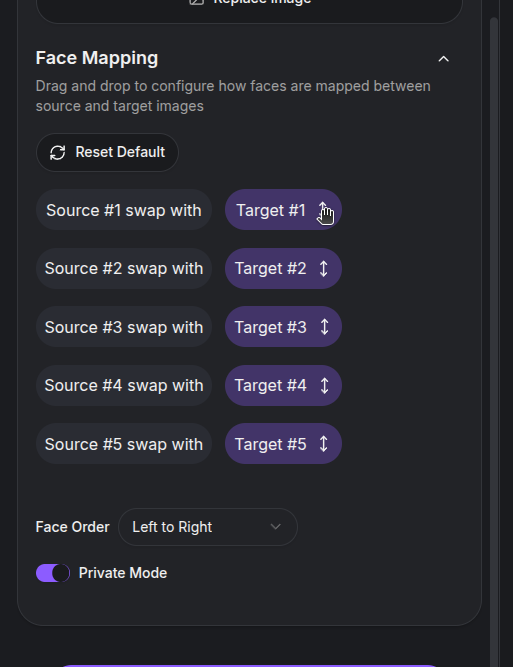
Follow-Along Example 🎬
Want to test-drive without hunting for assets? Download the two images below so we’re on the same page.
Source face:
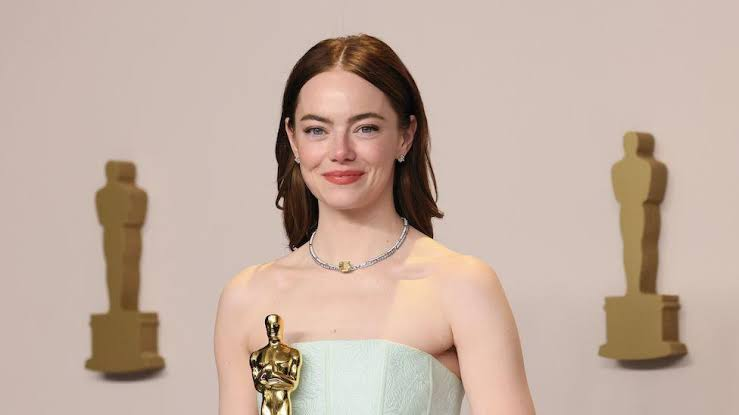
Target crew:
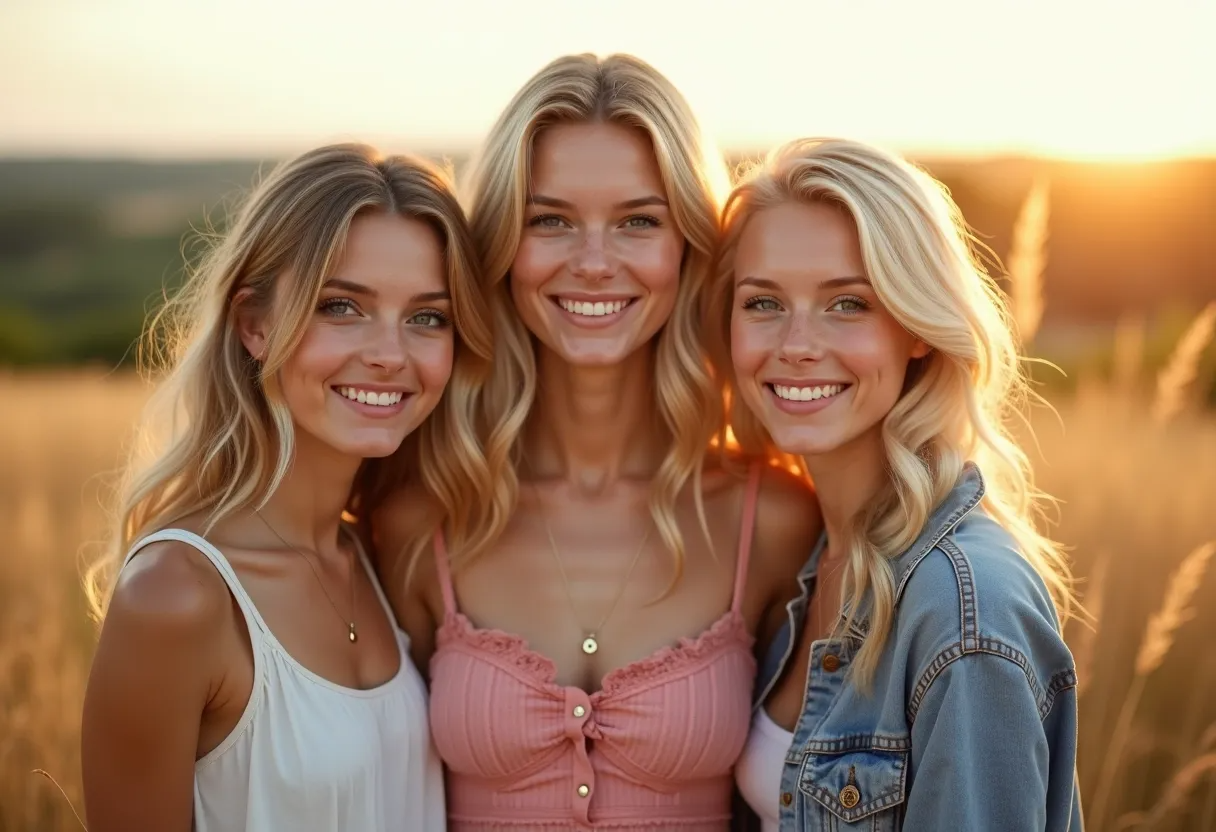
Drop them into the tool and you’ll see the default layout:
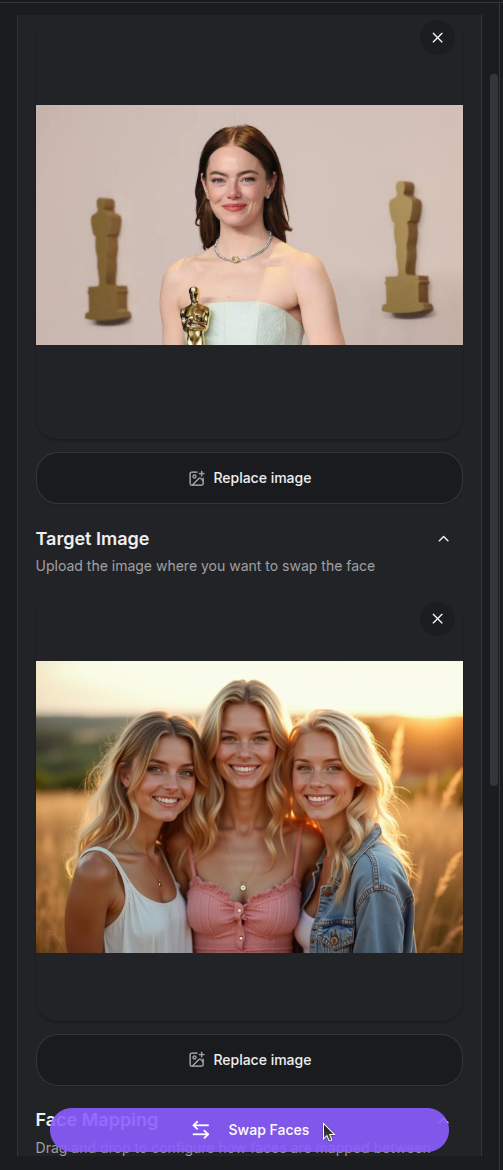
Now swap Source #1 into each target slot and watch the faces change:
- Target #1:
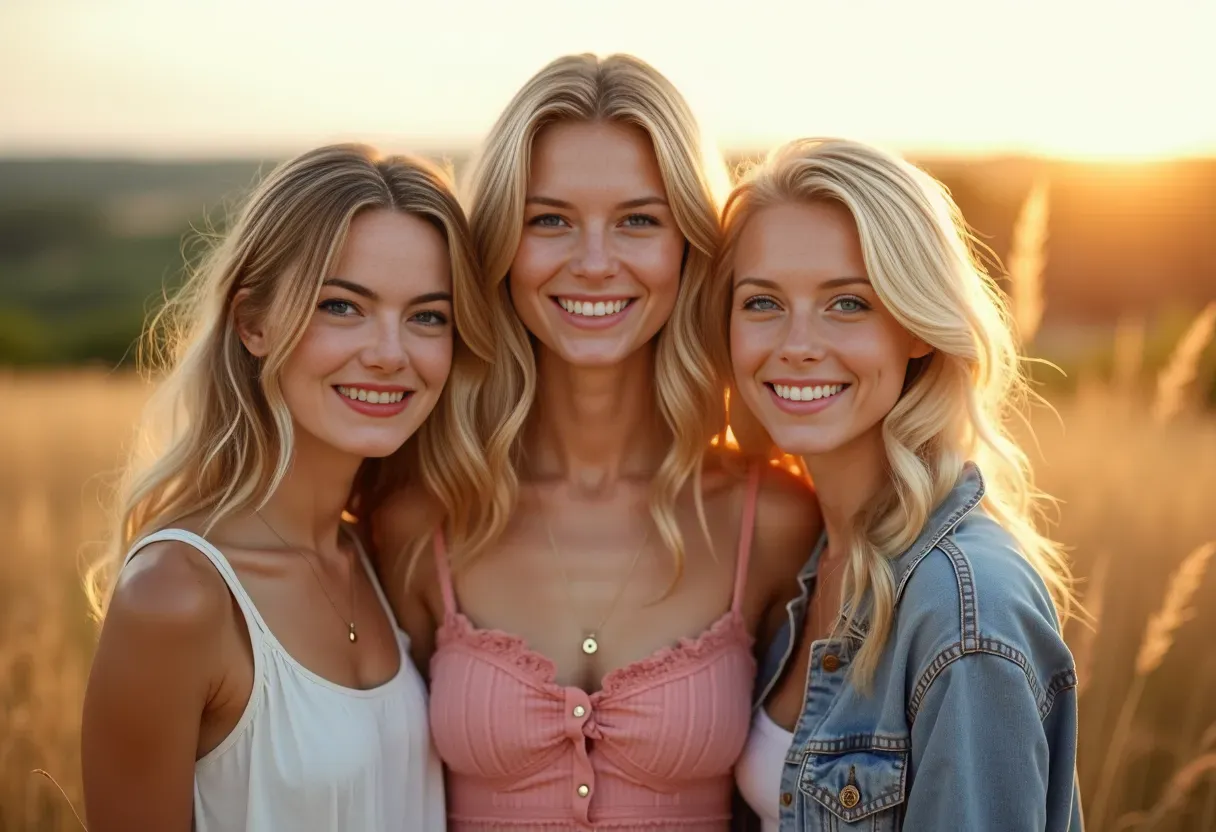
- Target #2:
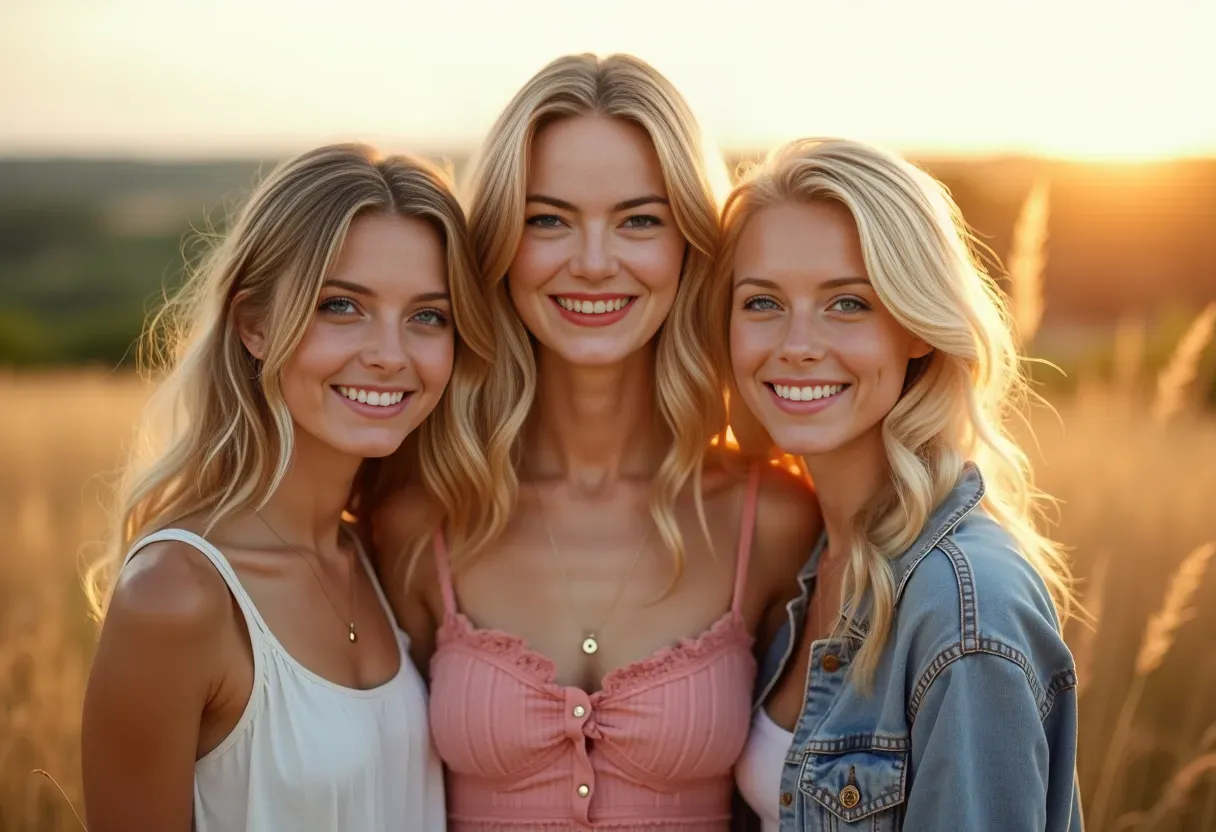
- Target #3:
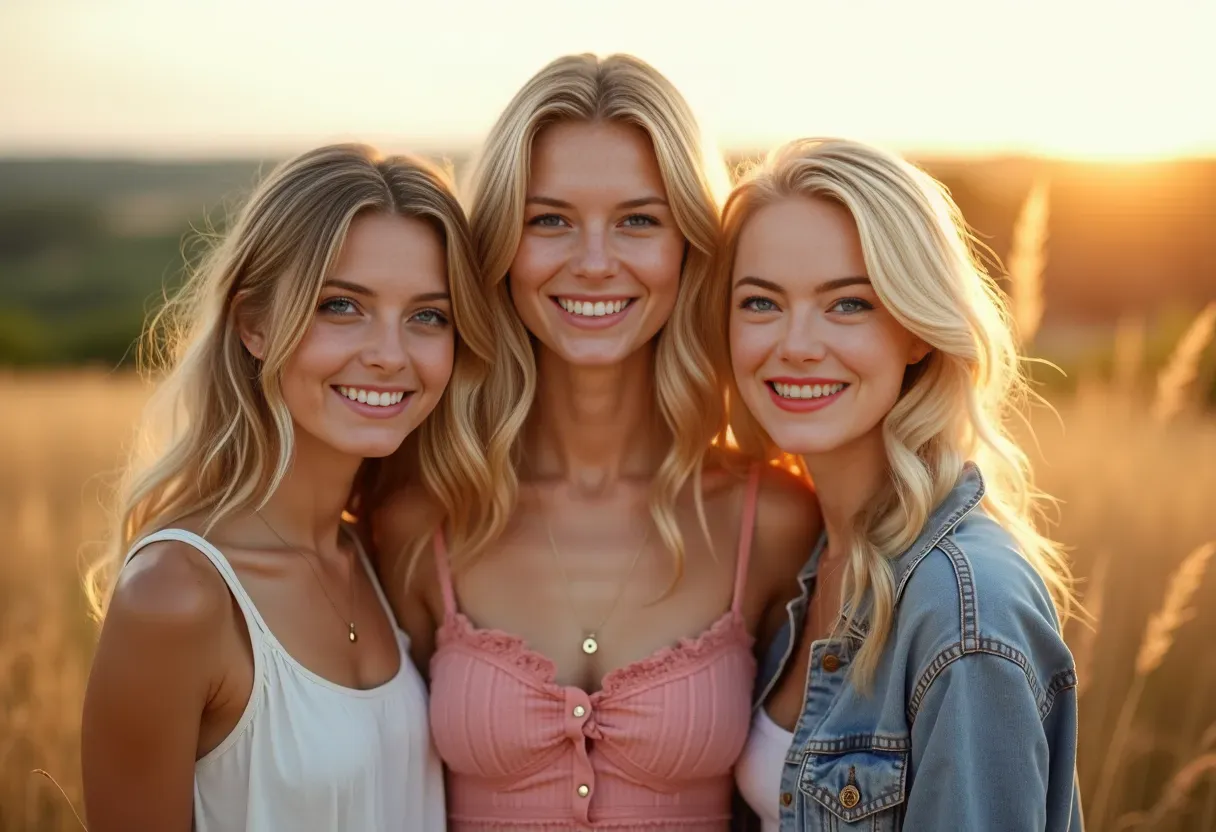
Each swap respects the target’s pose and lighting, so experiment with different pairings until the expression lands.
Tips For Cleaner Swaps 🧼
- Keep faces clear. Avoid heavy shadows, sunglasses, or hair blocking the eyes.
- Match lighting. Photos shot in similar lighting blend way better.
- Scale matters. If one face is tiny and the other is close-up, resize the images before swapping.
- Try multiple targets. Drag the badges to test new combos without re-uploading.
Give it a spin and let your characters crash each other’s photos. If anything looks off, tweak the mapping or try a different source—iteration is the secret sauce. ✨
Alternative: Generative Head Swap With Magic Edit ✨
If the standard Face Swap tool does not give you the look you want, try a generative head swap with the Magic Edit tool and a compatible BFS (Best Face Swap) LoRA. This workflow can transfer the whole head—including hair and facial details—while asking the model to blend it into the target pose, lighting, and body.
DopamineGirl supports these BFS choices in Magic Edit:
| Magic Edit model | Face-swap LoRA to select | Images |
|---|---|---|
| Qwen Image | BFS Head V5 – 2511 (recommended) | Add the target/body as Reference 1, then the donor face/head as Reference 2. Magic Edit automatically combines the references left to right into one guide image. |
| Flux2 Klein 9B | BFS Head V1/V2 – Flux 2 Klein 9B (recommended) | Add the target/body as Reference 1, then the donor face/head as Reference 2. |
The BFS repository also lists Flux 2 Klein 4B, Krea 2, and older Qwen variants, but those versions are not supported by this DopamineGirl workflow. See the BFS model page on Hugging Face for the upstream model details and examples.
How to use it
- Open Magic Edit.
- Select Qwen Image or Flux2 Klein 9B as the model.
- Open LoRA, choose the matching BFS face-swap LoRA from the library, and keep its default weight for your first attempt.
- Add the image or ordered references shown in the table above. The first subject is the target whose body, pose, lighting, and background should remain; the second subject supplies the new face and head.
- Paste the matching example prompt below into Edit Prompt, then adjust the identity, expression, or blending instructions for your images.
- Select Edit Image. If the result changes too much, strengthen the instructions about what must stay unchanged or try clearer, better-aligned source images.
Example prompt for Qwen Image
Add the target/body as Reference 1 and the donor face/head as Reference 2. Qwen Image accepts up to three references, combines them left to right, and uses the first reference for the output size. For this two-image example, the target/body is on the left and the donor face/head is on the right. You can also upload an already combined guide as a single reference:
head_swap: Keep the person on the left as the base, including their body, pose, expression, lighting, clothes, and background. Replace only their head with the head of the person on the right. Preserve the right person's identity, hair, eyes, nose, mouth, and skin texture. Match the original head angle and blend the skin tone, shadows, neck, and proportions naturally.
Example prompt for Flux2 Klein 9B
Use this after adding the target/body as Reference 1 and the donor face/head as Reference 2:
head_swap: Use Reference 1 as the base and keep its body, pose, expression, lighting, clothes, and background. Replace its head with the head from Reference 2. Preserve the identity, hair, eyes, nose, mouth, and skin texture from Reference 2. Match the head angle from Reference 1 and blend the skin tone, shadows, neck, and anatomical proportions naturally. Produce a sharp, detailed result.
Use images of yourself or people who have given you permission. Do not use this workflow to impersonate public figures or non-consenting individuals.
FaceSwap Video 🎞️
Want to take the swap beyond stills? The video tool slices your clip into individual frames, runs the face swap on each one, then stitches everything back together so you get a finished video.
- Launch the FaceSwap Video Tool ↗
- Keep clips at or below 1000 frames. The tool validates and extracts the frames before the job enters the worker queue.
- Face ordering and drag-and-drop mapping work the same way as the still-image tool, with up to five mapped faces.
- Processing costs $0.002 per frame (20 credits per frame). The waiting card reports swapped frames out of the total, starting at
0 / total. - After every frame is swapped, the frames are encoded into an MP4 and the original audio is preserved when the source audio codec can be copied. If direct copying is not compatible, the audio is re-encoded to AAC.
FaceSwap Video is an idle-only worker task, so normal image, video, and other generation work is assigned first. For best results, trim your footage so the subject stays framed similarly throughout. That keeps the per-frame swaps tight and makes the final render feel natural.
Troubleshooting Generations
Work from the simplest possible job: one prompt, one model, default settings, and no optional LoRAs or references. Change one thing at a time so you know what helped.
| What you see | What to check |
|---|---|
| Generate or Edit Image will not submit | Confirm that you are signed in, have available credit, and supplied all required inputs. Check any message shown beside the control. |
| A job is still processing | Check the tool's Results panel or mobile Results tab, then History. Avoid repeatedly submitting the same paid job while one is already running. |
| The result is unlike the prompt | Put the main subject first, remove conflicting styles, and describe visible details. Try Basic Prompting. |
| A reference barely changes the output | Check that it is active and that its reference type is supported by the selected model. For image-to-image, adjust the Creativity control in small increments. |
| An edit changes too much | State what should remain unchanged, use fewer simultaneous requests, and check the input image crop and order. See Magic Edit. |
| A LoRA does not appear or gives poor results | Select a LoRA for the current model family, confirm it is enabled, and try a lower weight. Select LoRAs through Add LoRA, not <lora:...> prompt text. |
| A video moves too much or too little | Describe one action and one camera move over the selected duration. Use a clear first frame. See Video Generation. |
For a reproducible comparison, keep a fixed seed, model, dimensions, and sampler while changing one prompt phrase. Different models and workflows can interpret the same seed differently. ComfyUI's KSampler reference explains the seed, steps, guidance, sampler, scheduler, and denoising controls used by many image workflows.
If a job fails, keep its link or ID, the tool and model you selected, the approximate time, and the error message. For account or billing problems, see the Payment FAQ or email tony@dopaminegirl.com. Do not send passwords or payment credentials.
Pay with Cryptocurrency
This guide explains how to get cryptocurrency and use it to top up credits. Dopamine Girl creates a payment invoice through its checkout provider; the invoice is the authority for the supported coin, network, address, amount, and deadline. Available options can change.
New to cryptocurrency?
You can ask an AI assistant such as ChatGPT how to buy cryptocurrency in your country. For example, ask: “How can I buy cryptocurrency in [my country] and send it to pay an invoice? Compare Binance, Coinbase, and Strike for availability, payment methods, fees, withdrawal limits, and supported coins and networks. Link to current official instructions.” Check the answer against the provider's current instructions and your local rules before buying or sending.
Places to look include Binance, Coinbase, and Strike. Their services vary by country. Strike focuses on Bitcoin, so use it only if the invoice offers Bitcoin on a network Strike can send to. Whichever service you choose, make sure it lets you send the exact coin and network shown on your invoice.
Create an invoice
- Sign in and open Top up credits.
- Select Crypto, enter an amount accepted by the form, and select Pay Now.
- On the invoice, choose a coin and network that your sending wallet supports. Read the exact amount, destination address, and any memo or destination tag shown there.
Do not reuse an address from an earlier invoice. Keep the new invoice open until you have checked the transfer details.
Send the payment
- In your wallet or exchange, choose Send or Withdraw.
- Select the same coin and network as the invoice. A token name alone does not identify its network.
- Copy the address from the invoice. If it displays a memo or tag, include that too.
- Enter the invoice's requested amount. Check whether your wallet deducts network fees from the amount sent.
- Compare the destination and network one last time, then confirm.
Sending the wrong asset, network, amount, or memo can delay or prevent automatic crediting. The checkout provider's payment FAQ explains common mismatches. If you are unsure about any field, stop before sending and ask your wallet provider or Dopamine Girl support.
Check the result
Keep the invoice link and transaction hash (TXID). Once the payment is confirmed and credited, check Billing Overview for the balance and Billing History for the purchase record.
If the transfer is confirmed on the network but your balance has not changed, contact tony@dopaminegirl.com with your account name, invoice or payment ID, coin and network, amount, transaction hash, and approximate time. Do not send a seed phrase, private key, or account password.
You can also use Telegram Stars if that payment method suits you better.
Pay with Telegram Stars
Telegram Stars are used for digital purchases inside Telegram. Your final price for Stars can depend on how you buy them and your region; check the amount shown by Telegram before confirming. See Telegram's Stars explanation.
Create and pay for an order
- Sign in to Dopamine Girl and open Top up credits.
- Select Telegram Star, enter an amount accepted by the form, and select Pay Now.
- Complete the order in Telegram. Check the Stars amount and confirm only if it matches what you expect.
- Save the order ID provided for the successful payment. Telegram also keeps a payment receipt in the bot chat; see its payment documentation.
The Dopamine Girl payment bot is another way to open the Telegram flow. If you use the bot directly, follow its current amount and payment instructions rather than relying on an old screenshot.
Redeem the order
Return to Top up credits, select Telegram Star, then select Redeem Telegram Payment. Paste the order ID and submit. You can also open the Telegram billing page.
Check Billing Overview for your updated balance. Billing History lists successful purchases recorded in the past 12 months.
If something goes wrong
- No order ID: check the bot chat and Telegram payment receipt before starting another purchase.
- Order ID is rejected: check for extra spaces, make sure you are signed in to the intended Dopamine Girl account, and confirm the payment succeeded in Telegram.
- Payment succeeded but credit is missing: keep the order ID and receipt, then email tony@dopaminegirl.com with your account name, approximate time, and a description of the problem. Do not send passwords or payment credentials.
For other billing questions, see the Payment FAQ. You can also pay with cryptocurrency.
Payment FAQ
Dopamine Girl uses prepaid credit for paid tools. There is no recurring subscription. Before submitting a generation, review its settings and the current pricing page.
Credits and prices
Where can I see my balance and expiry dates?
Open Billing Overview. It shows your available balance and each credit wallet's expiration date. Purchased credits expire 365 days after purchase.
What will a generation cost?
The pricing page lists current USD prices by feature. The cost can depend on the model, output size, duration, number of images, steps, and references. Some image models use fixed sampling settings; others have step-based pricing. Review the tool's settings and any price notes before submitting.
Where can I see what used my credit?
Open Credit Usage for the credit transaction list. Billing History shows successful purchases recorded in the past 12 months. Those pages answer different questions: credit usage tracks spending, while billing history tracks purchases.
Adding credit
How do I top up?
Open Top up credits, enter an amount allowed by the form, and choose one of the payment methods currently shown there. Use the matching Crypto Payment Guide or Telegram Stars Guide for step-by-step help. Payment options can vary, so use the choices displayed on the checkout page.
I paid but my balance has not changed. What should I check?
Check Billing Overview and Billing History after the payment is confirmed. A pending or partially paid invoice may need more time or manual review. Do not make another payment just because the first one has not yet appeared. Keep the payment reference or transaction hash and contact support if it remains unresolved.
Can I get a receipt or invoice?
Billing History shows the purchase reference, method, amount, and date for successful purchases in the last 12 months. If you need a formal receipt or an older record, contact support with the purchase reference. Do not send card details, wallet secrets, or passwords.
Need help?
Email tony@dopaminegirl.com with your account name, payment method, purchase reference or transaction hash, approximate time, and a brief description of the issue. For a failed generation, include the job or art link and the error message.
Safety Policy
At Dopamine Girl, we recognize the transformative power of artificial intelligence and are committed to harnessing this potential responsibly. As part of this commitment, we have established clear guidelines to safeguard minors, respect real individuals, and prevent the generation of harmful or illegal content.
Our platform is dedicated to fostering creativity and innovation while upholding standards of safety and respect. We understand the importance of balancing the freedom to create with the need to protect vulnerable groups and individuals.
Content Guidelines
Prohibited Content
The following types of content are strictly prohibited on our platform:
-
Content Related to Minors
- Any photorealistic images of minors
- Sexual or suggestive content involving minors
- Inappropriate depictions of minors in any form
- Content that could be interpreted as exploitative of minors
-
Real People
- Non-consensual depictions of real individuals
- Sexual or suggestive content of real people
- Defamatory or harmful content targeting real individuals
- Commercial use of someone's likeness without permission
-
Harmful or Illegal Content
- Extreme violence or gore
- Animal abuse or cruelty
- Hate speech or discriminatory content
- Content promoting illegal activities
Content Generation Rules
When using our image generation services:
- Prompts must comply with our content policies
- Generated content must not violate any of our prohibited content rules
- Users are responsible for reviewing and ensuring compliance of their generated content
Moderation and Enforcement
How We Moderate
We employ a multi-layered approach to content moderation:
-
Automated Systems
- AI-powered content detection
- Automated flagging of potential violations
- Preventive filters for prohibited content
-
Manual Review
- Human moderator review of flagged content
- Regular audits of generated content
- Investigation of user reports
-
Community Participation
- User reporting system
- Community feedback mechanisms
- Collaborative content monitoring
Enforcement Actions
Violations of our safety policy may result in:
- Content removal
- Account suspension
- Permanent account termination
- Reporting to relevant authorities (if applicable)
Reporting Violations
If you encounter content that violates our safety guidelines:
- Use the "Report" button available on content
- Provide specific details about the violation
- Include any relevant context or evidence
You can also contact our support team at support@dopaminegirl.com for urgent concerns.
Appeals Process
If you believe your content was incorrectly removed or your account was wrongly penalized:
- Submit an appeal through your account dashboard
- Provide a detailed explanation of why you believe the action was incorrect
- Include any supporting evidence or context
- Wait for our review team's response (typically within 48-72 hours)
User Controls and Safety Features
We provide several tools to help customize your experience:
-
Content Filtering
- Customize visible content categories
- Block specific types of content
- Adjust safety levels for generated images
-
Account Settings
- Set personal content preferences
- Control interaction permissions
- Manage privacy settings
Commitment to Safety
We are committed to:
- Regular policy updates to address emerging challenges
- Transparent communication about our safety measures
- Continuous improvement of our moderation systems
- Collaboration with users to maintain a safe environment
Questions and Support
For questions about our safety policy or to report concerns:
- Email: support@dopaminegirl.com
- Use the in-platform help center
- Submit feedback through your account dashboard
Remember, maintaining a safe and respectful environment is a shared responsibility. We appreciate your cooperation in following these guidelines and helping us keep Dopamine Girl a positive space for AI-powered creativity.
Terms of Service
Welcome to Dopamine Girl!
We provide a cloud-based platform (Platform) where you can create images and videos by leveraging our generative AI technologies.
In these Terms, when we say you or your, we mean both you and any entity you are authorised to represent (such as your employer). When we say we, us, or our, we mean Dopamine Girl (the Platform operator).
These Terms form our contract with you, and set out our obligations as a service provider and your obligations as a customer. You cannot use our Services unless you agree to these Terms.
Some capitalised words in these Terms have defined meanings, and each time that word is used in these Terms it has the same meaning. You can find a list of the defined words and their meaning at the end of these Terms.
For questions about these Terms, or to get in touch with us, please email: support@dopaminegirl.com
These Terms were last updated on 22 April 2025.
Our Disclosures
Please read these Terms carefully before you accept. We draw your attention to:
- our privacy policy (on our website) which sets out how we will handle your personal information;
- clause 1.3 (Variations) which sets out how we may amend these Terms;
- clause 4 (Payment and Credits) which sets out important information about our payment models;
- clause 7 (Disclaimers regarding AI generated content) which sets out our disclaimers and things you should be aware of when using our Platform and Services;
- clause 12 (Liability) which sets out exclusions and limitations to our liability under these Terms.
We may receive a benefit (which may include a referral fee or a commission) should you visit certain third party websites through a link on our Platform, or for featuring certain goods or services on our Platform.
These Terms do not intend to limit your rights and remedies at law, including any of your Consumer Law Rights.
1. Engagement and Term
1.1 Term of Agreement
These Terms apply from when you sign up for an Account, until the date on which your Account is terminated in accordance with these Terms. We grant you a right to use our Services for this period of time only.
1.2 Age Requirement
If you are under the age of 18, you have obtained the consent of your parents or guardian or supervision of a responsible adult to use our Platform.
1.3 Variations
We may amend these Terms at any time, by providing written notice to you. By clicking "I accept" or continuing to use our Platform after the notice or 30 days after notification (whichever date is earlier), you agree to the amended Terms. If you do not agree to the amendment, you may close your Account with effect from the date of the change in these Terms by providing written notice to us.
2. Our Services
2.1 Service Description
We provide the following services to you:
- Access to our Platform for generating AI images and videos
- Access to our troubleshooting support (Support Services) (collectively, our Services)
2.2 Support Services
If you require Support Services, you may request these by getting in touch with us through our Platform.
3. Account
3.1 Account Requirement
You must sign up for an Account in order to access and use our Services and Platform.
3.2 Account Responsibilities
While you have an Account with us, you agree to:
- Keep your information up-to-date (and ensure it remains true, accurate and complete)
- Keep usernames and passwords secure and confidential, and protect them from misuse or being stolen
- Notify us if you become aware of, or have reason to suspect, any unauthorised access to your Account
4. Payment and Credits
4.1 Payment Models
We offer two types of payment models:
- Free tier: Limited access to basic features
- Pay-as-you-go: Purchase credits to use for generating content
4.2 Credits
- Credits can be purchased through our Platform
- Credits are non-refundable unless required by law
- Different types of generations (images/videos) may consume different amounts of credits
4.3 Payment Terms
You must not pay, or attempt to pay, for credits by fraudulent or unlawful means. If you make payment by debit or credit card, you must be the authorised card holder.
4.4 Payment Processing
- Our payment methods will be set out on our Platform
- If you choose to pay using one of our third-party payment processors, you may need to accept their terms and conditions
- All payments are processed securely through our payment providers
4.5 Refunds and Pricing
- Credits are non-refundable except where required by law
- We reserve the right to modify credit pricing at any time
4.6 Account Suspension
If any payments are not processed successfully, we may:
- Suspend your access to our Services (including access to our Platform)
- Charge interest on any overdue payments at a rate equal to 2% per annum above the base rate, calculated daily and compounding monthly
4.7 Taxes
You are responsible for paying any levies or taxes associated with your use of our Services, for example sales taxes, value-added taxes or withholding taxes (unless we are required by law to collect these on your behalf).
5. Platform Licence
5.1 While you have an Account, we grant you and your Authorised Users a right to use our Platform (which may be suspended or revoked in accordance with these Terms). This right cannot be passed on or transferred to any other person and, if you have a Subscription, will also be subject to the conditions of your Subscription (as set out on our Platform or in your Account).
5.2 You must not (and you must ensure that your Authorised Users do not):
(a) access or use our Platform in any way that is improper or breaches any laws, infringes any person's rights (for example, intellectual property rights and privacy rights), or gives rise to any civil or criminal liability;

(b) interfere with or interrupt the supply of our Platform, or any other person's access to or use of our Platform;

(c) introduce any viruses or other malicious software code into our Platform;

(d) use any unauthorised or modified version of our Platform, including but not limited to for the purpose of building similar or competitive software or for the purpose of obtaining unauthorised access to our Platform;

(e) attempt to access any data or log into any server or account that you are not expressly authorised to access;

(f) use our Platform in any way that involves service bureau use, outsourcing, renting, reselling, sublicensing, concurrent use of a single user login, or time-sharing;

(g) circumvent user authentication or security of any of our networks, accounts or hosts or those of any third party; or

(h) access or use our Platform to transmit, publish or communicate material that is, defamatory, offensive, abusive, indecent, menacing, harassing or unwanted, including but not limited to:

    i.  using the Platform to transmit or publish any harassing, indecent, obscene, fraudulent, unlawful, or harmful material;

    ii. using the Platform to send unauthorised advertising, spam, or solicitation or to harvest, collect, or gather user data without the user's express consent;

    iii.    generating content that includes impersonations of any real person or falsely portrays an individual in a misleading or defamatory way;

    iv. generating content that includes depictions of sexual abuse, sexual violence, explicit pornography, or any form of non-consensual acts;

    v.  generating content that includes depictions of child nudity, child pornography, or any form of child exploitation;

    vi. generating content that includes depictions of acts that involve non-consent, sexual or otherwise;

    vii.    generating content that includes depictions of animal cruelty or harm to animals, including acts of violence or torture;

    viii.   generating content that includes explicit depictions of gore or extreme violence;

    ix. generating content that promotes or incites hatred, violence, discrimination, or harm based on race, ethnicity, religion, gender, sexual orientation, or any other protected characteristic;

    x.  generating content that intentionally endangers or threatens the safety, security, or well-being of any individual or group, or

    xi. otherwise generating content that, in our sole discretion, is deemed unsuitable, obscene, offensive, or contrary to community standards and user expectations.
6. Availability, Disruption and Downtime
6.1 While we strive to always make our Services available to you, we do not make any promises that these will be available 100% of the time. Our Services may be disrupted during certain periods, including, for example, as a result of scheduled or emergency maintenance.
6.2 Our Services (including our Platform) may interact with, or be reliant on, products or services provided by third parties, such as cloud hosting service providers. To the maximum extent permitted by law, we are not liable for disruptions or downtime caused or contributed to by these third parties.
6.3 We will try to provide you with reasonable notice, where possible, of any disruptions to your access to our Services.
7. Disclaimer regarding Generative AI and Large Language Models
7.1 Our Platform utilises generative AI and large language model technologies, which can produce content that may appear highly realistic or convincing, including text, images, audio, and video outputs (collectively, Generated Content). You acknowledge and agree that Generated Content may include deep fakes, misinformation, biases, or other potentially misleading or inaccurate information. You are solely responsible for evaluating and verifying the accuracy, reliability and legality of any Generated Content before relying on or using it for any purpose.
7.2 Subject to your Consumer Law Rights, the Generated Content is provided "as is" without warranties of any kind, either expressed or implied, including but not limited to warranties of merchantability, fitness for a particular purpose, title or non-infringement. We disclaim all liability for any errors, omissions, or inaccuracies in the Generated Content, any infringement on third party rights (including Intellectual Property Rights) and any damages or losses that may arise from your use or reliance on such content.
8. Ownership of Inputs & Outputs
8.1 You may be permitted to submit text, documents, images, videos or other inputs to our Service (Inputs) and receive output generated and returned by the Services based on the Inputs (Outputs). Inputs and Outputs are collectively referred to as Content.
8.2 You are responsible for all Inputs you submit to our Services. By submitting Inputs to our Service, you represent, warrant and agree that you have all rights, licenses and permissions necessary for us to use and process the Inputs and to generate Outputs. You retain ownership of any Inputs.
8.3 If you are on one of our paid Subscriptions (Paid Subscriber), as between the Parties, subject to your compliance with these Terms, ownership of all Intellectual Property Rights in any Content you, or your Authorised Users, create while using the Platform will vest in you upon creation, and to the extent that ownership of such Intellectual Property Rights does not automatically vest in you, we hereby assign all such Intellectual Property Rights to you and agree to do all other things necessary to assure your title in such rights.
8.4 Certain Paid Subscribers can select whether Content is public or private. You acknowledge and agree that Content marked public (Public Content) will be available for use by all users on the Platform. Where you opt for Content to be private (Private Content), only you and your Authorised Users can access that Content. Whether or not a Paid Subscriber and their Authorised Users can select whether Content is public or private is set out in your Subscription plan.
8.5 You grant us a non-exclusive, irrevocable, royalty-free, worldwide, non-sublicensable (other than to our related bodies corporate, as that term is defined in the Corporations Act 2001 (Cth)) and non-transferable right and licence to use any Private Content solely for the purpose of performing of our obligations or exercising our rights under these Terms. We will not use, retain, analyse, or process your Inputs for any other purpose, including training AI models, developing new offerings, or for any commercial purpose, without your express written consent.
8.6 You grant us a non-exclusive, irrevocable, perpetual, royalty-free, worldwide and transferable right and licence to use, reproduce, modify, copy, process, adapt, publish, transmit, create derivative works of, publicly display and distribute any Public Content for providing, maintaining, promoting and improving the Services, including training AI models, developing new offerings, or for any commercial purpose.
8.7 If you are on one of our free Subscriptions (Free Subscriber), as between the Parties, ownership of all Intellectual Property Rights in any Output you, or your Authorised Users, create while using the Platform will vest in us upon creation, and to the extent that ownership of such Intellectual Property Rights does not automatically vest in us, you hereby assign all such Intellectual Property Rights to us and agree to do all other things necessary to assure our title in such rights.
8.8 If you (if you are an individual) or any of your personnel have any Moral Rights in any material provided, used or prepared in connection with these Terms, you agree to (and will procure that your personnel) consent to our use or infringement of those Moral Rights.
9. Ownership of Services, Platform and Data
9.1 We own all intellectual property rights in our Services (including our Platform). This includes how our Platform looks and functions, as well as our copyrighted works, trademarks, inventions, designs and other intellectual property, including Our Materials. You agree not to copy or otherwise misuse our intellectual property without our written permission (for example, to reverse engineer or discover the source code of our intellectual property), and you must not alter or remove any confidentiality, copyright or other ownership notice placed on our Platform. Nothing in these Terms constitutes a transfer or assignment of any Intellectual Property Rights in Our Materials.
9.2 Notwithstanding anything else in these Terms, we will own all Intellectual Property Rights in any developments, modifications, enhancements or improvements to the Platform or Our Materials (Platform Developments). To the extent that any Platform Developments do not automatically vest in us by operation of law, you hereby assign all Intellectual Property Rights in such Platform Developments to us and agree to do all other things necessary to assure our title in such rights.
9.3 We grant you a non-exclusive, revocable, royalty-free, worldwide, non-sublicensable and non-transferable right and licence, for the duration of the Subscription Period, to use Our Materials that we provide to you solely for your use and enjoyment of our Services, as contemplated by these Terms.
9.4 We may use any feedback or suggestions that you give us in any manner which we see fit (for example, to develop new features), and no benefit will be owed to you as a result of any use by us of your feedback or suggestions.
9.5 When you use our Services, we may create anonymised statistical data from your usage of our Services (for example, through aggregation). Once anonymised, we own that data and may use it for our own purposes, such as to provide and improve our Services, to develop new services or product offerings, to identify business trends, and for other uses we communicate to you. This may include making such anonymised data publicly available, provided it is not compiled using a sample size small enough to make your data or identity identifiable.
10. Confidential Information and Personal Information
10.1 While using our Services, you may share confidential information with us, and you may become aware of confidential information about us. You agree not to use our confidential information, and to take reasonable steps to protect our confidential information from being disclosed without our permission, and we agree to do the same for your confidential information. This also means making sure that any Authorised Users, employees, contractors, professional advisors or agents of ours or yours only have access to confidential information on a 'need-to-know basis' (in other words, the disclosure is absolutely necessary), and that they also agree to not misuse or disclose such confidential information.
10.2 However, either you or we may share confidential information with legal or regulatory authorities if required by law to do so.
10.3 We collect, hold and disclose and use any Personal Information you provide to us in accordance with our privacy policy, available on our website, and applicable privacy laws.
10.4 You must only disclose Personal Information to us if you have the right to do so (such as having the individual's express consent).
10.5 We may need to disclose Personal Information to third parties, such as our related companies or our service providers (for example, IT and administrative service providers and our professional advisors).
10.6 Where we are required by law to report on our activities, you acknowledge that from time to time we may request certain information from you in order to meet our requirements, and you agree to provide us with such information within the timeframes reasonably requested by us.
11. Consumer Law Rights
11.1 In some jurisdictions, you may have guarantees, rights or other remedies provided by law (Consumer Law Rights), and these Terms do not restrict your Consumer Law Rights. We will only be bound by your Consumer Law Rights and the express wording of these Terms.
11.2 If you accept these Terms in Australia, nothing in these Terms should be interpreted to exclude, restrict or modify the application of, or any rights or remedies you may have under, any part of the Australian Consumer Law (as set out in Schedule 2 of the Competition and Consumer Act 2010 (Cth)). If our Platform is not ordinarily used for personal, household or domestic use, our liability for a breach of your Consumer Law Rights is limited to either resupplying our Services, or paying the cost of having our Services resupplied.
12. Liability
12.1 To the maximum extent permitted by law, we will not be liable for, and you release us from liability for, any Liability caused or contributed to by, arising from or in connection with:
    (a) your computing environment (for example, your hardware, software, information technology and telecommunications services and systems); or

    (b) any use of our Services by a person or entity other than you or your Authorised Users.
12.2 Regardless of whatever else is stated in these Terms, to the maximum extent permitted by law:
(a) neither we or you are liable for any Consequential Loss;

(b) a party's liability for any Liability under these Terms will be reduced proportionately to the extent the relevant Liability was caused or contributed to by the actions (or inactions) of the other party, including any failure by the other party to mitigate its loss;

(c) (where our Services are not ordinarily acquired for personal, domestic or household use or consumption) in respect of any failure by us to comply with relevant Consumer Law Rights, our Liability is limited (at our discretion) to supplying the Services again or paying the cost of having the Services supplied again; and

(d) our aggregate liability to you for any Liability arising from or in connection with these Terms will be limited to the amount of any Subscription Fees paid by you to us in respect of the supply of the relevant Services to which the Liability relates, or if you do not have a Subscription, to AU$1,000.
13. Notice Regarding Apple
13.1 To the extent that you are using or accessing our Platform on an iOS device through a mobile application from the Apple App Store, you further acknowledge and agree to the terms of this clause. You acknowledge that these Terms are between you and us only, not with Apple Inc. (Apple), and Apple is not responsible for our Platform and any content available on our Platform.
13.2 Apple has no obligation to furnish you with any maintenance and support services with respect to our Platform.
13.3 If our mobile application fails to conform to any applicable warranty, you may notify Apple and Apple will refund the purchase price of the mobile application to you. To the maximum extent permitted by applicable law, Apple will have no other warranty obligation whatsoever with respect to the mobile application and any other claims, losses, liabilities, damages, costs or expenses attributable to any failure to conform to any warranty will be our responsibility.
13.4 Apple is not responsible for addressing any claims by you or any third party relating to our mobile application or your use of our mobile application, including but not limited to: (1) product liability claims; (2) any claim that our mobile application fails to conform to any applicable legal or regulatory requirement; and (3) claims arising under consumer protection or similar legislation.
13.5 Apple is not responsible for the investigation, defence, settlement and discharge of any third-party claim that our mobile application infringes that third party's intellectual property rights.
13.6 You agree to comply with any applicable third-party terms when using our mobile application.
13.7 Apple and Apple subsidiaries are third-party beneficiaries of these Terms, and upon your acceptance of these Terms, Apple will have the right (and will be deemed to have accepted the right) to enforce these Terms against you as a third-party beneficiary of these Terms.
13.8 You hereby represent and warrant that: (1) you are not located in a country that is subject to a U.S. Government embargo, or that has been designated by the U.S. Government as a "terrorist supporting" country; and (2) you are not listed on any U.S. Government list of prohibited or restricted parties.
14. Suspension and Termination
14.1 We may suspend your access to our Services where:
    (a) we reasonably believe there has been any unauthorised access to or use of our Services;

    (b) you have transmitted or inputted to our Platform any Inputs that may be offensive, or any material in violation of any law; or

    (c) you have otherwise breached clause 5.2.
14.2 If we suspend your access to our Services, we will let you know within a reasonable time of doing so, and we will work with you to resolve the matter within 14 days, or if it cannot be resolved, then we may terminate your Account and your access to our Services will end.
14.3 We may terminate these Terms (meaning you will lose access to our Services) if:
    (a) you breach these Terms and do not remedy that breach within 14 days of us notifying you of that breach;

    (b) you breach these Terms and that breach cannot be remedied; or

    (c) you experience an insolvency event (including but not limited to bankruptcy, receivership, voluntary administration, liquidation, or entering into creditors' schemes of arrangement).
14.4 You may terminate these Terms if:
    (a) we breach these Terms and do not remedy that breach within 14 days of you notifying us of that breach; or

    (b) we breach these Terms and that breach cannot be remedied.
14.5 You may also terminate these Terms at any time by notifying us through your Account or to our email for notices (as set out in clause 15.8). Any unused credits at the time of termination will be forfeited unless required otherwise by law.
14.6 Termination of these Terms will not affect any other rights or liabilities that we or you may have.
15. General
15.1 Assignment: You may not transfer or assign these Terms (including any benefits or obligations you have under these Terms) to any third party without our prior written consent. We may assign or transfer these Terms to a third party, or transfer any debt owed by you to us to a debt collector or other third party.
15.2 Disputes: Neither we or you may commence court proceedings relating to any dispute, controversy or claim arising from, or in connection with, these Terms (including any question regarding its existence, validity or termination) (Dispute) unless we and you first meet (in good faith) to resolve the Dispute. Nothing in this clause will operate to prevent us or you from seeking urgent injunctive or equitable relief from a court of appropriate jurisdiction.
    If the Dispute is not resolved at that initial meeting:

    (a)        where you are resident or incorporated in Australia, refer the matter to mediation, administered by the Australian Disputes Centre in accordance with Australian Disputes Centre Guidelines for Commercial Mediation; or

    (b)     where you are not resident or incorporated in Australia, refer the matter to arbitration administered by the Australian Centre for International Commercial Arbitration, with such arbitration to be conducted in Sydney, New South Wales, before one arbitrator, in English and in accordance with the ACICA Arbitration Rules.
15.3 Events Outside Our Control: We will not be liable for any delay or failure to perform our obligations (including our Services), if such delay or failure is caused or contributed to by an event or circumstance beyond our reasonable control.
15.4 Governing law: These Terms are governed by the laws of New South Wales, and any matter relating to these Terms is to be determined exclusively by the courts in New South Wales and any courts entitled to hear appeals from those courts.
15.5 Illegal Requests: We reserve the right to refuse any request for or in relation to our Services that we deem inappropriate, unethical, unreasonable, illegal or otherwise non-compliant with these Terms.
15.6 Marketing: You agree that we may send you electronic communications about our products and services. You may opt-out at any time by using the unsubscribe function in our electronic communications.
15.7 Nature of Legal Relationship: These Terms do not create, and should not be interpreted so as to create, a partnership, joint venture, employment or agency relationship between us and you.
15.8 Notices: Any notice you send to us must be sent to the email set out at the beginning of these Terms. Any notice we send to you will be sent to the email address registered against your Account.
15.9 Survival: Clauses 7 to 14 will survive the termination or expiry of these Terms.
15.10 Third Party Sites: Our Platform may contain links to websites operated by third parties. Unless we tell you otherwise, we do not control, endorse or approve, and are not responsible for, the content on those websites. We recommend that you make your own investigations in relation to the suitability of those websites. If you purchase goods or services from a third party website linked from our Platform, those goods or services are being provided by that third party, not us. We may receive a benefit (which may include a referral fee or a commission) should you visit certain third party websites through a link on our Platform, or for featuring certain goods or services on our Platform. We will make it clear by notice to you which (if any) goods or services, or website links, we receive a benefit from by featuring them on our Platform.
16. Definitions
The following terms have specific meanings in these Terms:
Account
An account created to access our Services.
Content
Both Inputs and Outputs.
Credits
The virtual currency used to generate content on our Platform.
Generated Content
Any content produced by our AI systems, including but not limited to images and videos.
Inputs
Any text, prompts, images, or other content you provide to our Platform to generate content.
Outputs
Any content generated by our Platform based on your Inputs.
Platform
Our cloud-based generative AI platform accessible at dopaminegirl.com.
Services
Access to our Platform and Support Services.
Support Services
Technical support and troubleshooting services we provide to users.
Liability
Any expense, cost, liability, loss, damage, claim, notice, entitlement, investigation, demand, proceeding or judgment (whether under statute, contract, equity, tort (including negligence), indemnity or otherwise), howsoever arising, whether direct or indirect and/or whether present, unascertained, future or contingent and whether involving a third party or us or you or otherwise.
Moral Rights
Has the meaning given in the Copyright Act 1968 (Cth) and includes any similar rights in any jurisdiction in the world.
Our Materials
All Intellectual Property which is owned by or licensed to us and any improvements, modifications or enhancements of such Intellectual Property.
Personal Information
Any information or opinion about an identified individual, or an individual who is reasonably identifiable, whether the information or opinion is true or not, and whether the information or opinion is recorded in a tangible form or not.
DMCA Policy
Dopamine Girl and its associated services respect the intellectual property rights of others and expect its users to do the same. In accordance with the Digital Millennium Copyright Act of 1998 (DMCA), we will respond promptly to claims of copyright infringement committed using the Dopamine Girl website or any associated services that are reported to our designated copyright agent.
Takedown Notice Instructions
If you are a copyright owner or an agent thereof, and you believe that any content hosted on our website infringes your copyrights, you may submit a notification pursuant to the DMCA by providing our designated copyright agent with the following information in writing:
-
A physical or electronic signature of a person authorized to act on behalf of the owner of an exclusive right that is allegedly infringed.
-
Identification of the copyrighted work claimed to have been infringed.
-
Identification of the material that is claimed to be infringing or to be the subject of infringing activity and that is to be removed or access to which is to be disabled.
-
Information reasonably sufficient to permit Dopamine Girl to contact you, such as an address, telephone number, and, if available, an email address.
-
A statement that you have a good faith belief that use of the material in the manner complained of is not authorized by the copyright owner, its agent, or the law.
-
A statement that the information in the notification is accurate, and under penalty of perjury, that you are authorized to act on behalf of the owner of an exclusive right that is allegedly infringed.
Designated Agent Contact Information
All DMCA notices should be sent to our designated agent as follows:
Attn: DMCA Notice
Email: support@dopaminegirl.com
Counter Notice Instructions
If you believe that your content was removed or disabled by mistake or misidentification, you may send a counter notice to our designated agent. The counter notice must include:
-
Your physical or electronic signature.
-
Identification of the content that has been removed or to which access has been disabled and the location at which the content appeared before it was removed or access to it was disabled.
-
A statement under penalty of perjury that you have a good faith belief that the content was removed or disabled as a result of mistake or misidentification.
-
Your name, address, telephone number, and a statement that you consent to the jurisdiction of the federal court in your jurisdiction, and that you will accept service of process from the person who provided the original DMCA notification or an agent of such person.
Repeat Infringement Policy
Dopamine Girl will, in appropriate circumstances, terminate user accounts of those who are repeat infringers of copyrights. We also reserve the right to terminate user accounts even on a single instance of infringement.